FlexSync allows you to perform large-scale updates to your Shopify store directly from Google Sheets.
This is ideal when you need to update many products, variants, or inventory values efficiently.
This guide explains how bulk updates work.
What Counts as a Bulk Update #
A bulk update happens when you:
- change values across multiple rows at once
- copy and paste values into many cells
- fill down values across rows
- update multiple variants in a single action
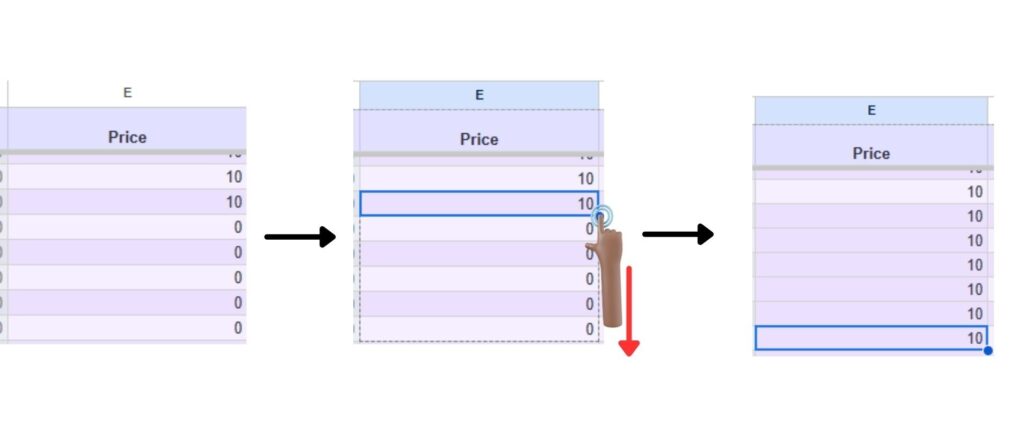
FlexSync supports bulk updates for all editable columns in your Google Sheet.
Supported Bulk Update Actions #
You can bulk update:
Inventory #
- Available inventory quantities
- Variant-level stock values
- Inventory across many products at once
Variants & Product Data #
- Variant prices
- Compare-at prices
- SKUs
- Barcodes
- Inventory policies
- Other editable product or variant fields
Each row is matched using system IDs, ensuring updates apply to the correct Shopify item.
Using Copy, Paste & Fill Actions #
FlexSync works seamlessly with standard Google Sheets actions:
- copy & paste values
- drag to fill down
- keyboard shortcuts for fast editing
These actions are fully supported as long as the edited columns are editable.
Reverting or Correcting Bulk Updates #
You can simply undo the action (Ctrl + Z). FlexSync is designed to work natively with Google Sheets, which means if you’re comfortable using Google Sheets, then you already know how to use FlexSync.