Welcome to FlexSync, your go-to solution for syncing Shopify stock with Google Sheets.
Follow the steps below to install and get started with FlexSync.
First of all, navigate to your Shopify Dashboard, click on Search, and select Apps in the top-bar menu.
In the search bar, type FlexSync. Or you can do this from Shopify App Store as well.
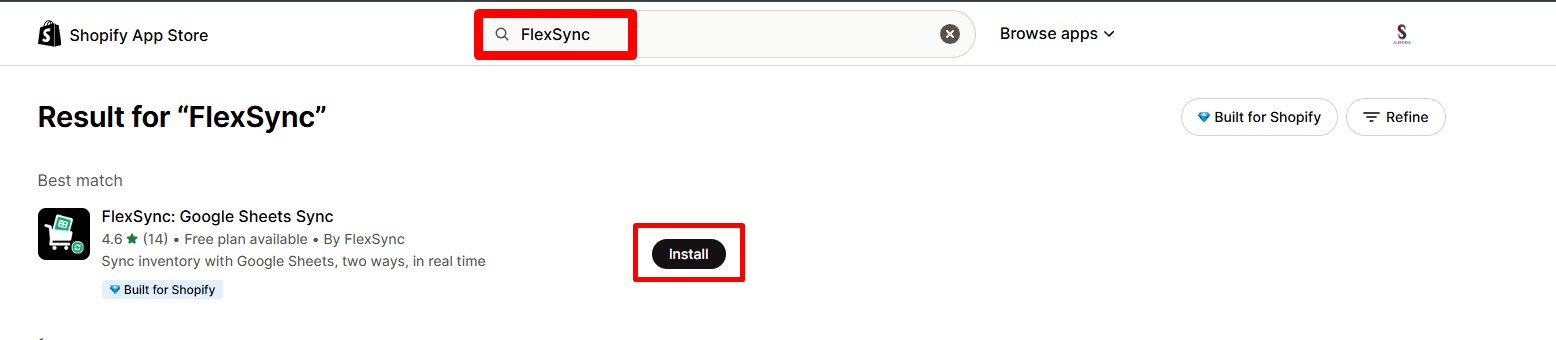
Select the FlexSync app from the search results and click on Install.
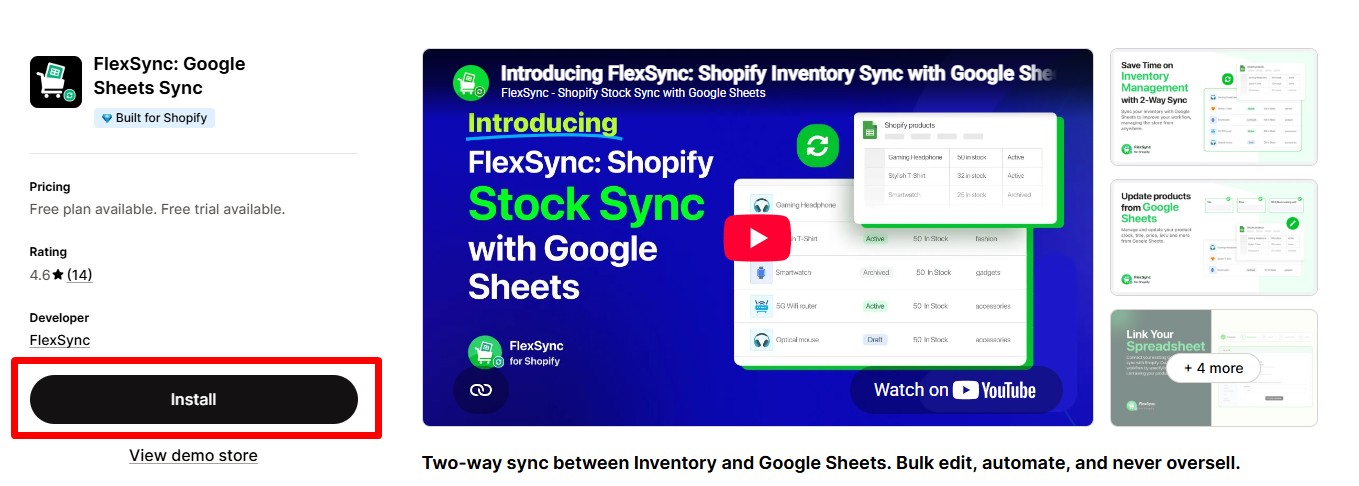
Navigate to the Apps section in your Shopify admin panel and Select FlexSync.
Step One: Connect Shopify to Google Sheets #
The first step is to connect your Google account. Click Connect Google and approve the requested permissions (spreadsheet access and basic profile info).
This takes about 10 seconds. Once approved, you’ll move automatically to the next step.
Step Two: Set up Spreadsheet #
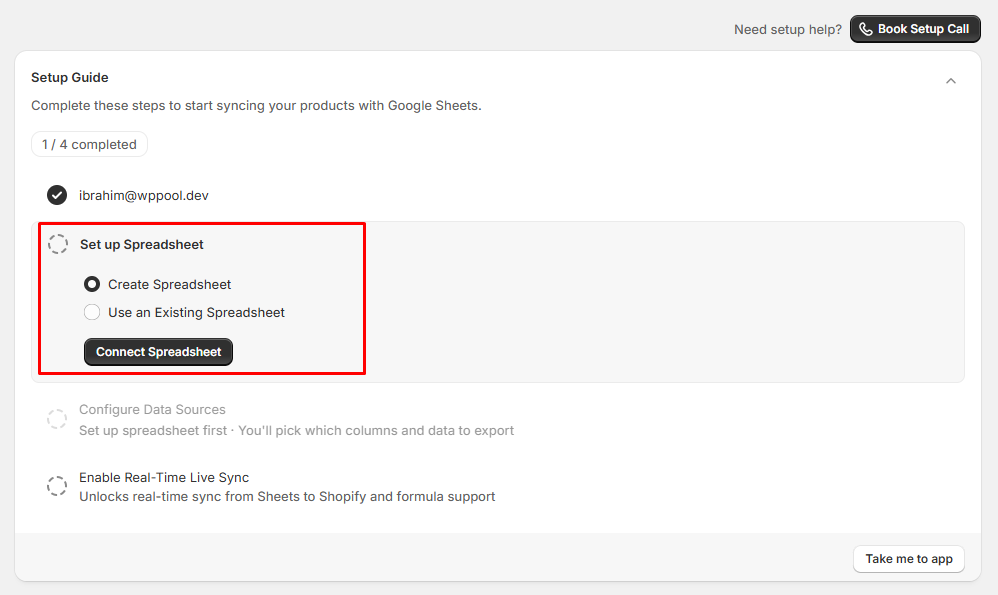
In this step you can either let FlexSync generate a new Google Sheet automatically, or you can connect an existing sheet by pasting its URL.
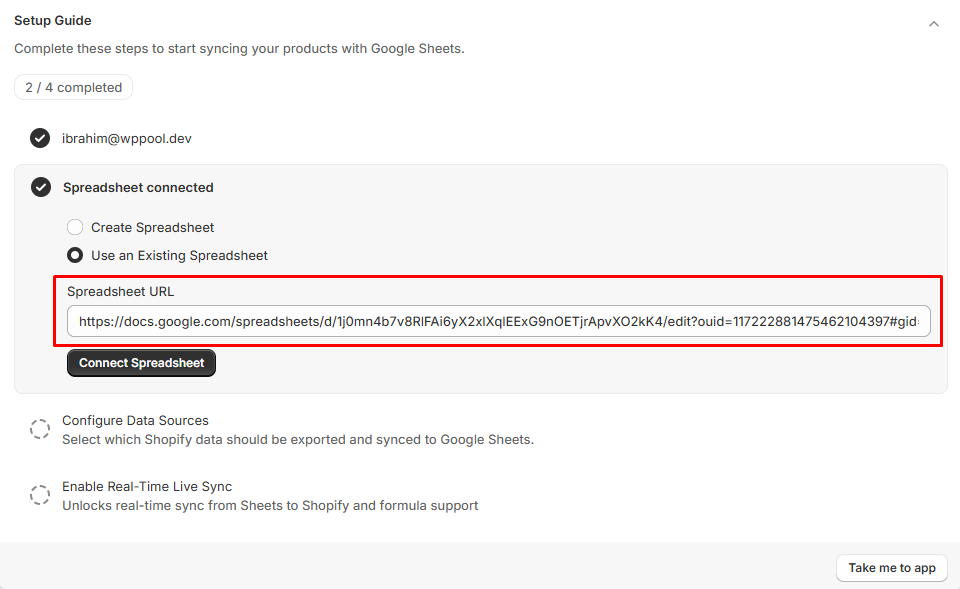
Click Create & Continue to link the spreadsheet and proceed to export your Shopify products.
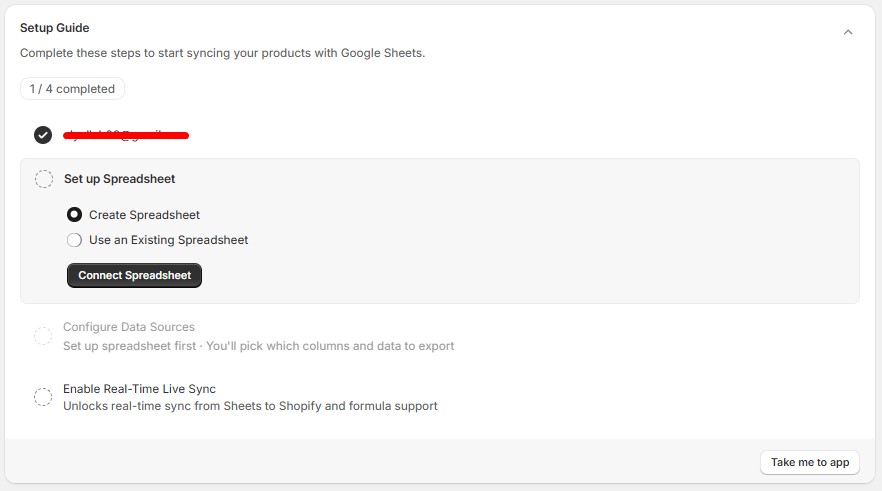
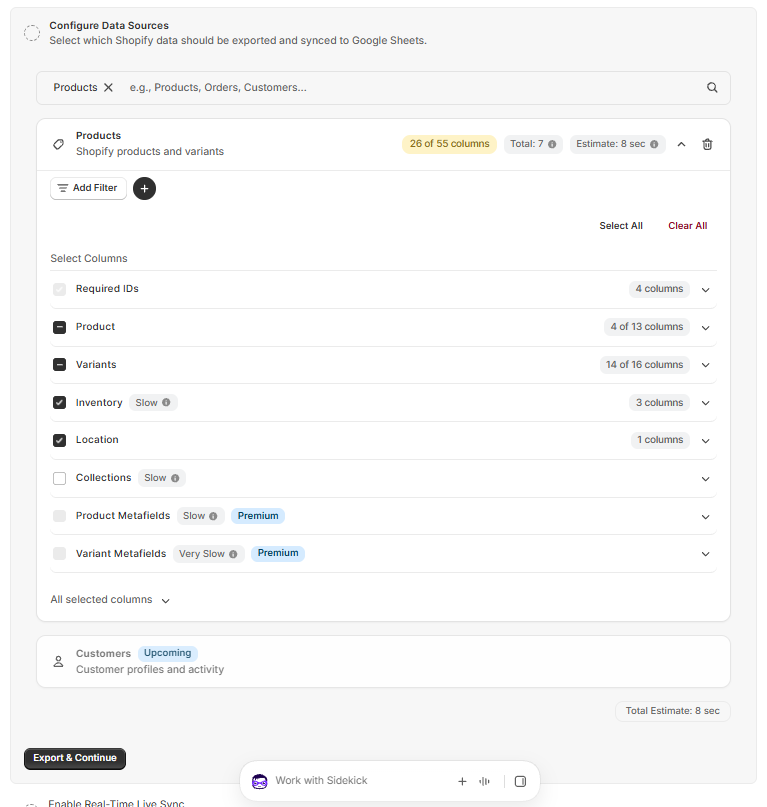
Step Three: Configure Data Sources #
Select which Shopify data should be exported to Google Sheets.
Products and Variants are available now. Orders are marked Upcoming and can’t be selected yet, this is coming in a future release. These settings are fully reversible and can be updated anytime. Learn more in our detailed guide 👈.
Within Products, note that Product Metafields and Variant Metafields are tagged Premium and require a paid plan.
Use Select All or Clear All to adjust your column selection, and Add Filter if you only want to sync a subset of products. When you’re ready, click Export & Continue.
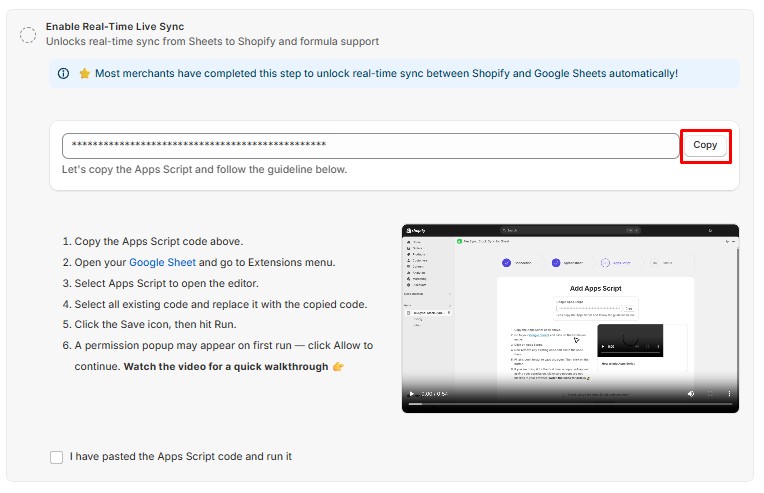
Step Four: Enable Real-Time Sync #
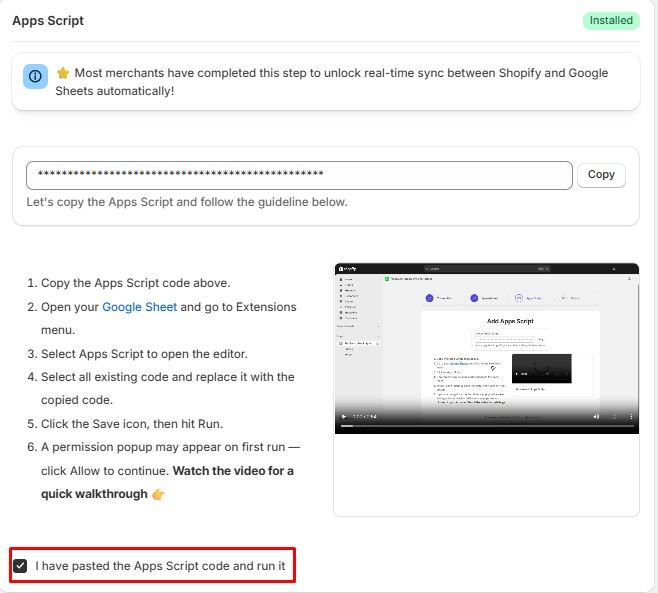
Copy the Apps Script and go to your Google Sheets.
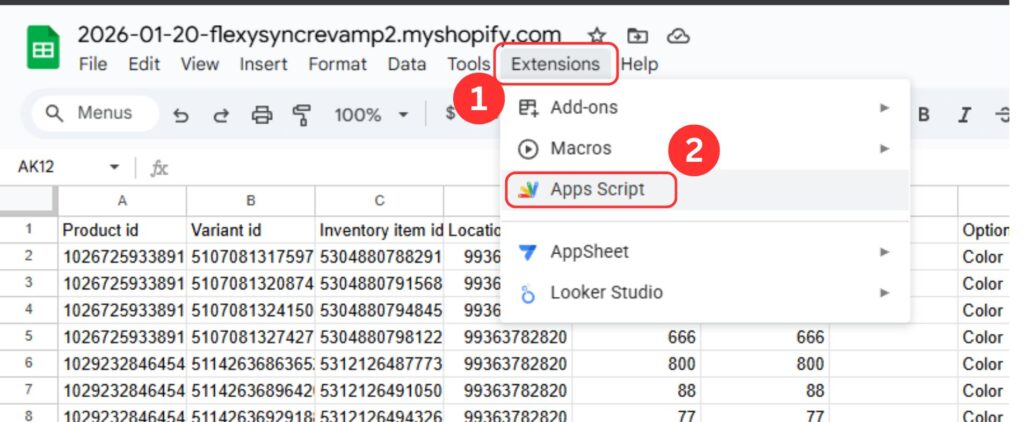
Then navigate to the Google Sheet that you just opened. Click on Extensions > Apps Script.
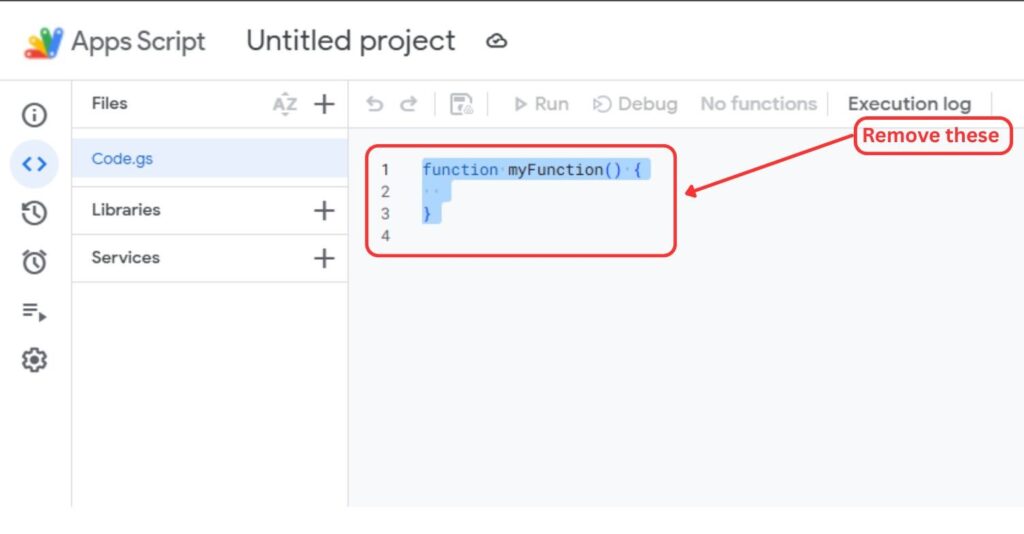
Now, remove the existing code and paste the Apps Script code that you copied.
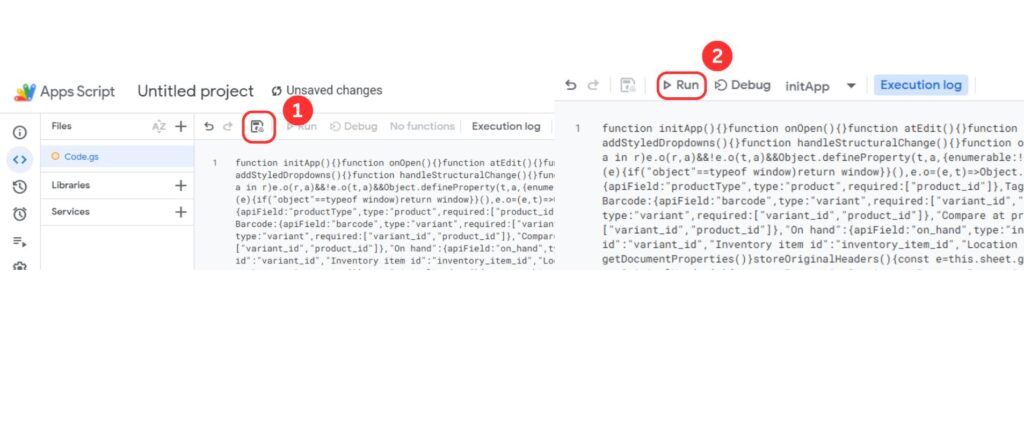
Hit save and click on the Run button.
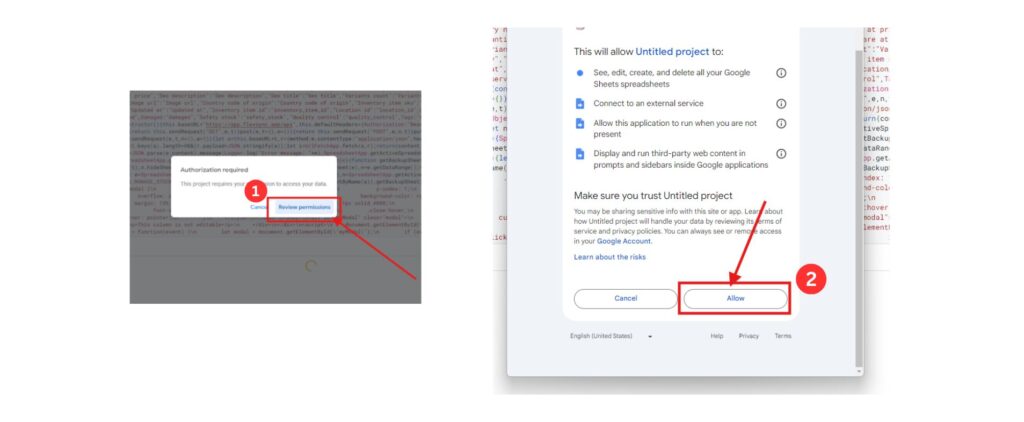
A popup will appear. Click on Review Permissions and click on Allow to grant the necessary permissions.
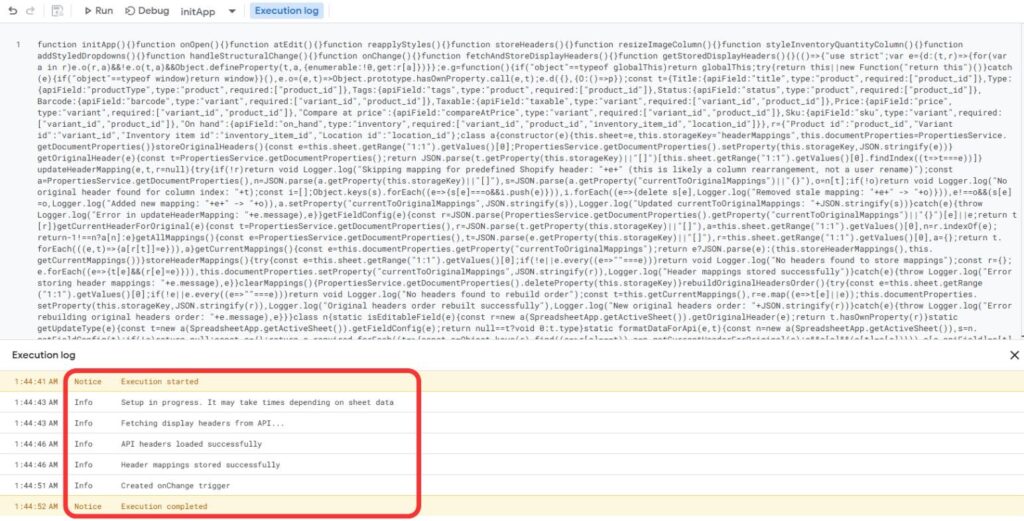
You will see this execution log at the bottom of the screen. That means your Apps Script has been deployed successfully.
Once it’s run successfully, check the box for “I have pasted the Apps Script code and run it.” Checking the box automatically confirms this step and moves you forward, no separate button needed.
Great! You’ve successfully connected your Shopify store with Google Sheets. Your products are now visible and fully manageable from the sheet.
Your dashboard #
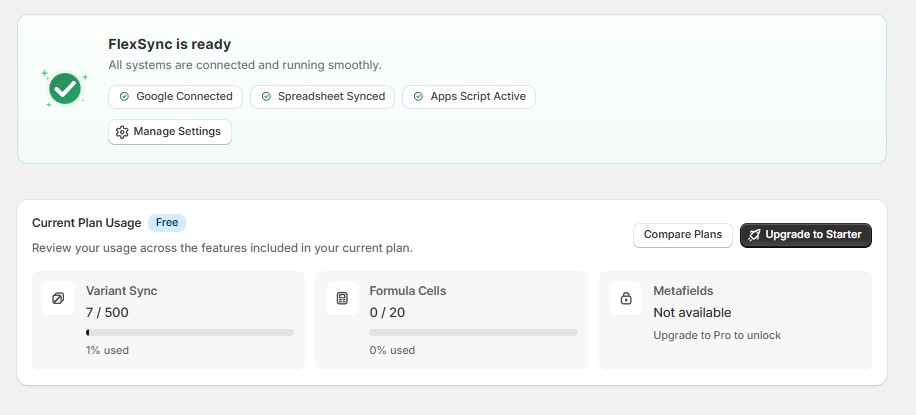
Once setup is complete, you’ll land on the FlexSync dashboard showing your connection status: Google Connected, Spreadsheet Synced, and Apps Script Active. If any of these show as disconnected later, click Manage Settings to reconnect.
Below that, the Current Plan Usage panel shows how much of your plan you’re using:
- Variant Sync: how many product variants you’re syncing against your plan limit
- Formula Cells: how many sheet formula cells you’re using, if Allow Sheet Formula is enabled
- To enable it, go to Settings > Advanced Settings and turn on the Allow Sheet Formula toggle.
- Metafields: locked on the Free plan, shown as “Not available” until you upgrade to Pro
If you’re approaching a limit, use Compare Plans to see what each tier includes, or Upgrade to Starter directly from this screen.
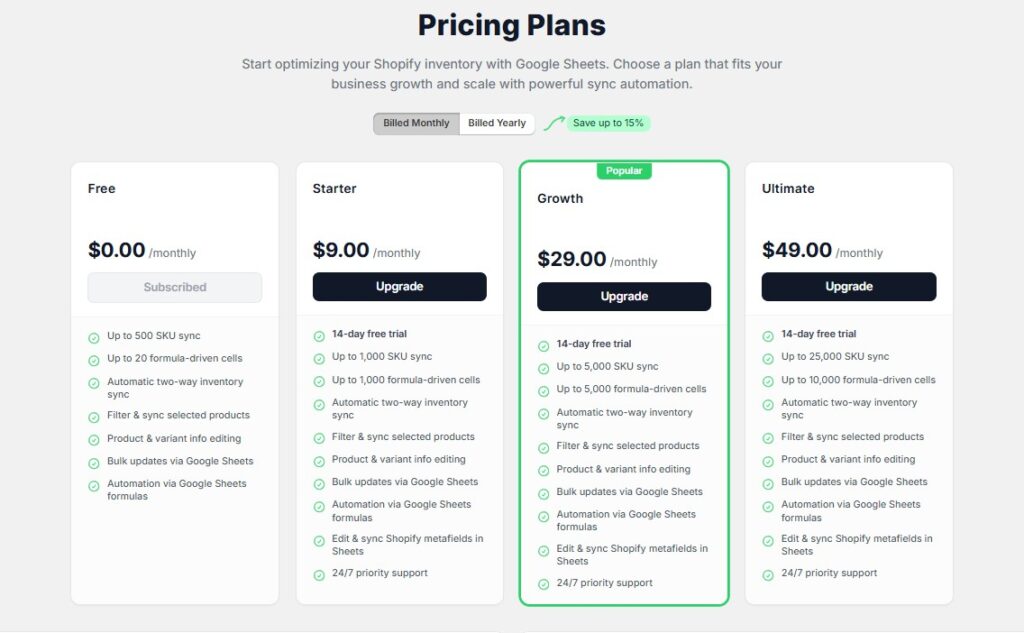
FlexSync offers different plans to suit your needs. Explore our other plans for greater sync capacities and 24/7 pristine support to manage your inventory seamlessly. Our paid plans also include a 14-day free trial.
Still need a hand? Schedule a live meeting and we’ll guide you through it.
