Once FlexSync is connected to Google Sheets, you can control what data is synced, how it’s structured and when updates happen.
All configuration is managed from the FlexSync dashboard and can be changed anytime.
This guide walks you through the core configuration options.
Select the Columns You Want in Google Sheets #
FlexSync lets you choose exactly which product fields appear in your Google Sheet.
- Required columns (like Product ID, Variant ID, Inventory Item ID, Location ID) are always included and cannot be edited.
- Optional columns can be selected or removed based on what you want to manage (inventory, pricing, product data, etc.).
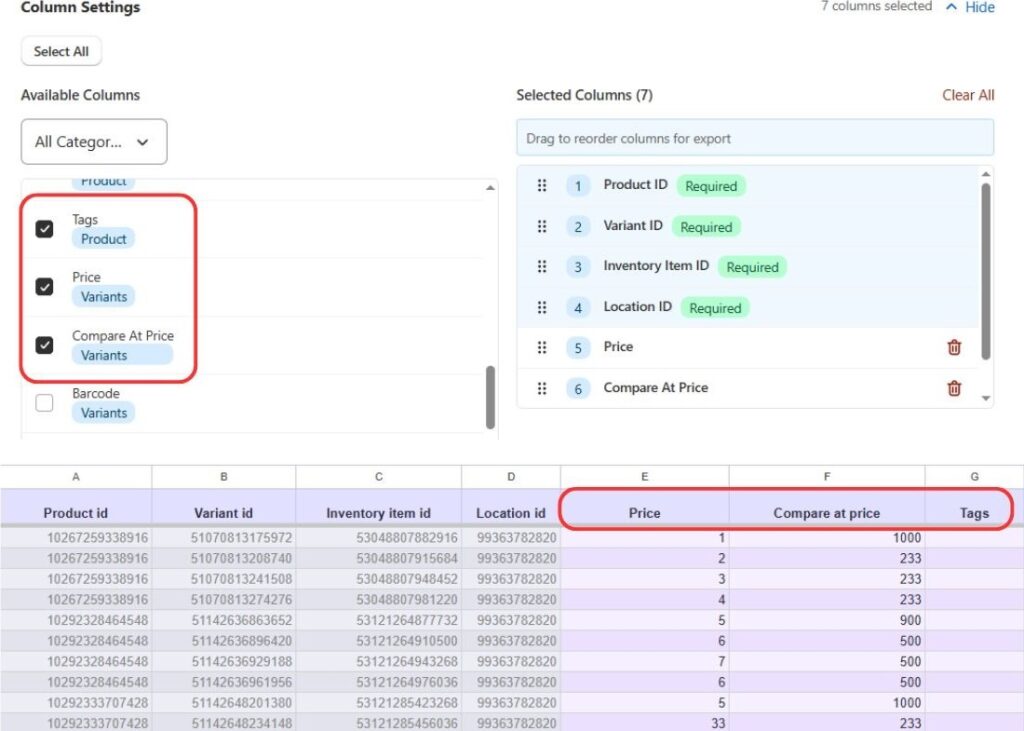
Only the columns you select here will appear in the Google Sheet. You can change your column selection anytime without breaking the sync.
Reorder Columns to Match Your Workflow #
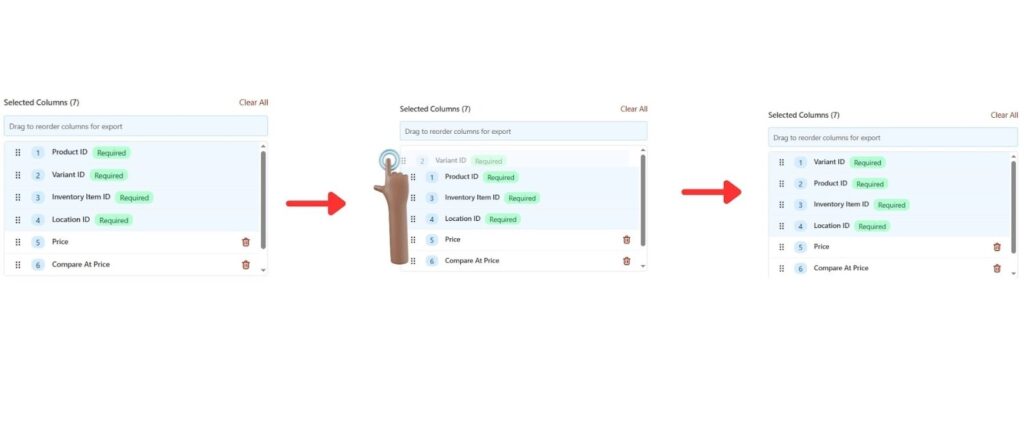
You can drag and reorder columns from the Selected Columns panel.
- The column order you set here is reflected directly in Google Sheets.
- Reordering columns does not affect syncing or data accuracy.
- Hit Save & Sync after applying.
You can also drag and reorder columns directly from Google Sheets.
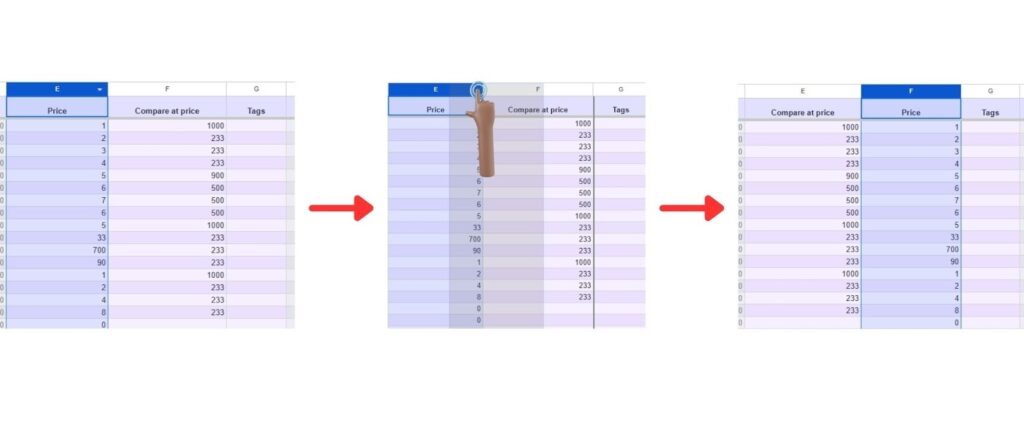
All column reordering is safe and reversible.
Apply Filters to Control Which Products Are Synced #
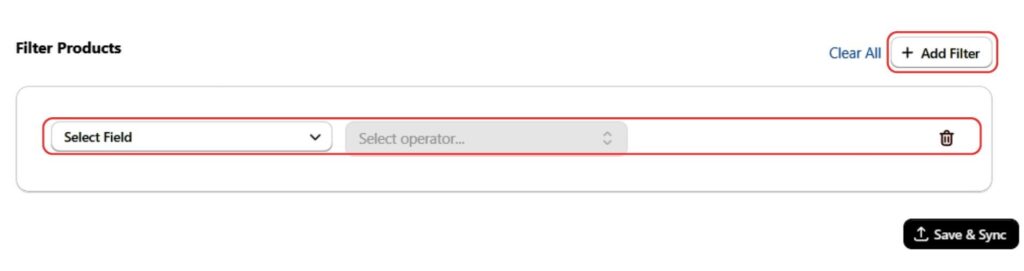
Filters let you control which products and variants appear in Google Sheets.
They work like visibility rules. They show or hide data, but never delete it.
Each filter has three parts:
- Field
- Operator
- Value
1. Field – What You Want to Filter #
Choose the product or variant attribute you want to filter by.
Common fields include:
- Status (Active, Draft, Archived)
- Vendor
- Product Type
- Tags
- Product ID / Variant ID
- Variant Title
- Options (Option 1, 2, 3)
- Exclude Bundle (advanced)
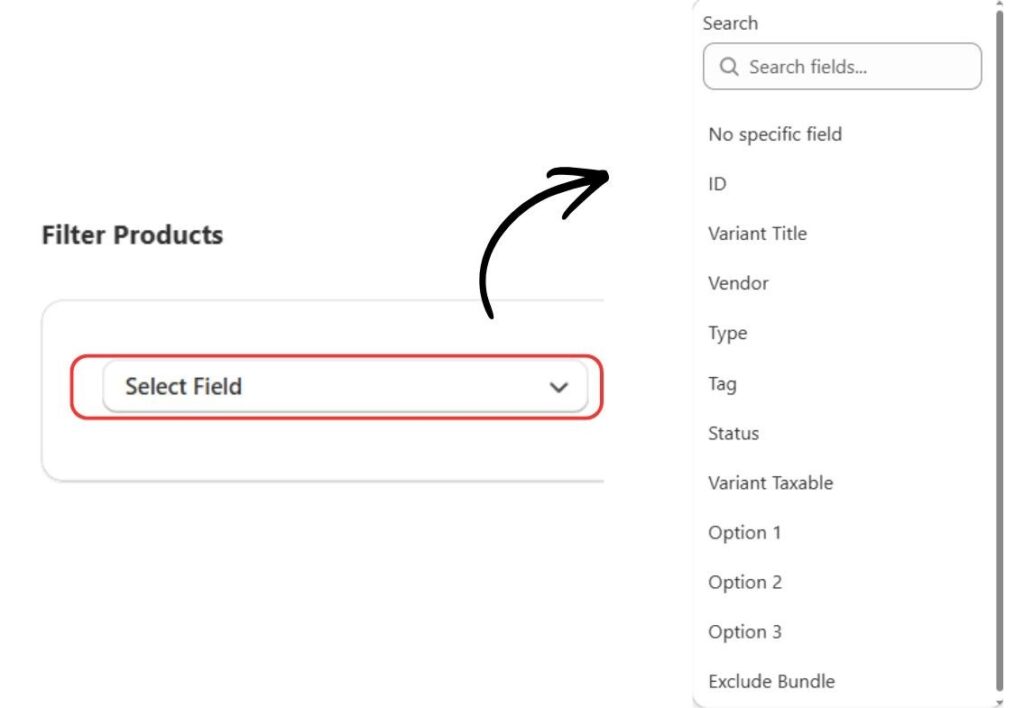
This defines which attribute FlexSync will evaluate.
2. Operator – How the Field Is Evaluated #
The operator determines how FlexSync matches the selected field.
Common operators explained #
- Equals to any of
Includes products that match at least one of the provided values.
Useful when you want to include multiple tags or IDs. - Equals to all of
Includes only products that contain every value you specify.
Commonly used with Tags. - Not equals to any of
Excludes products that match any of the specified values. - Equals
Matches an exact single value (commonly used for Status or Vendor). - Is empty
Includes products where the selected field has no value. - Is not empty
Includes only products where the field contains a value.
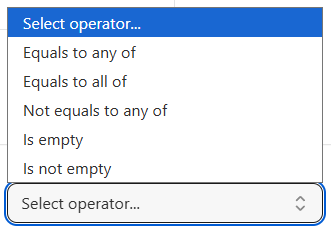
These operators give you fine-grained control over what appears in Sheets.
3. Value – What Should Match #
The value field is where you enter or select the condition to match.
Examples:
- Status → Active
- Tag → winter
- Tags (equals to all of) → winter, sale
- Vendor → Nike
- Product ID → specific ID(s)

Only products or variants matching the Field + Operator + Value rule will be shown.
Examples (Before & After) #
Before #
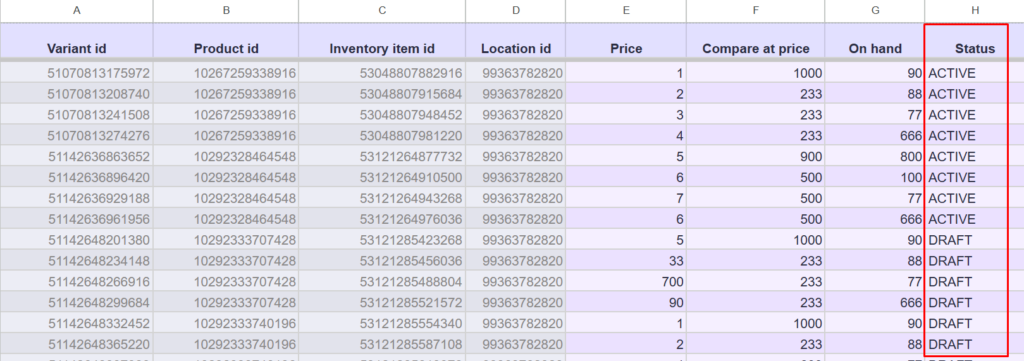
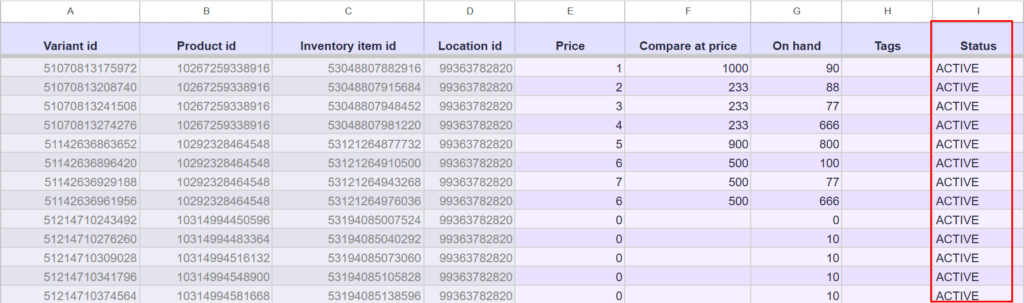
Applying Status Filter #
- Field: Status
- Operator: Equals
- Value: Active
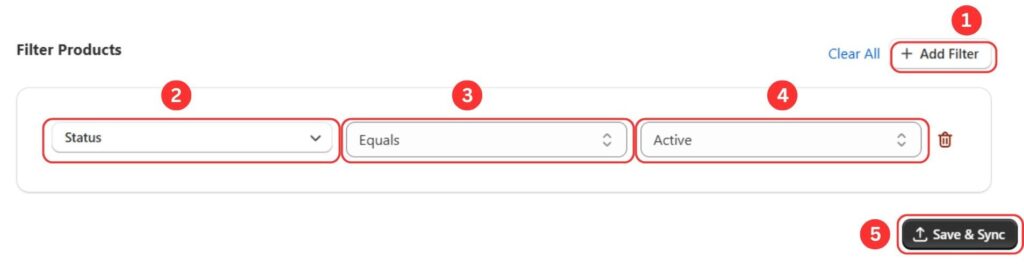
After Filter is Applied #
- Only active products appear in Google Sheets
- Draft and archived products are hidden
Important things to know:
- Filters do not delete or permanently exclude data.
- Removing a filter will bring previously excluded products back.
- Filters only control the scope of data shown and synced.
This is useful if you want to manage only a subset of products in Sheets.
Save & Apply Configuration Changes #
Any changes you make in the FlexSync dashboard, such as: column selection, column order, filters, etc., must be applied using Save & Sync.
N.B.: This is not related with real-time syncing from Google Sheets.
Understand Auto Sync vs Manual Sync #
Auto Sync (default) #
When Auto Sync is enabled:
- Any supported change made in Google Sheets updates Shopify instantly.
- This includes inventory, pricing, and other editable fields.
#
Manual Sync #
If Auto Sync is turned off:
- Changes in Google Sheets will not sync automatically.
- You can manually trigger sync from the dashboard when needed.
This gives you full control over when updates are applied.
Change or Reset Your Setup Anytime #
You can safely update your configuration at any point:
- switch to a different Google Sheet
- change selected columns
- modify filters
- reconnect or disconnect your Google account
FlexSync is designed so configuration changes do not require reinstallation and do not risk data loss when used as intended.
Once configured:
- Use Google Sheets to manage inventory and product data
- Changes sync based on your Auto Sync setting
- You can return to the dashboard anytime to refine your setup
You’re now ready to manage Shopify inventory directly from Google Sheets with confidence.