Once FlexSync is set up, Google Sheets becomes your primary automatic workspace for managing Shopify inventory, product pricing and much more.
This guide explains what you can update and how it works.
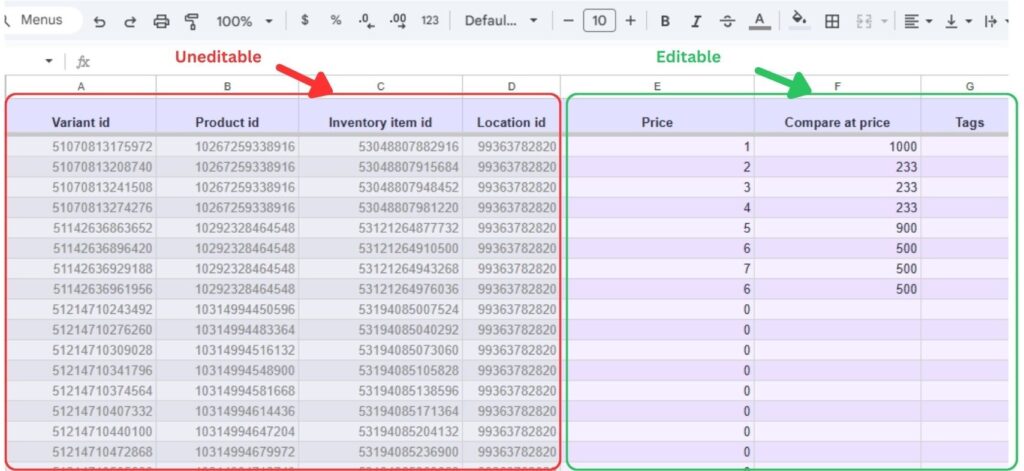
Understand Editable vs Locked Columns #
In your Google Sheet, columns fall into two categories:
- Locked (grey) columns
These contain system identifiers and reference data used for syncing.
They cannot be edited, but you can still apply visual formatting (colors, highlights, resizing). - Editable (colored) columns
These are the fields you can safely update, such as inventory quantities and prices.
Update Shopify Inventory from Google Sheets #
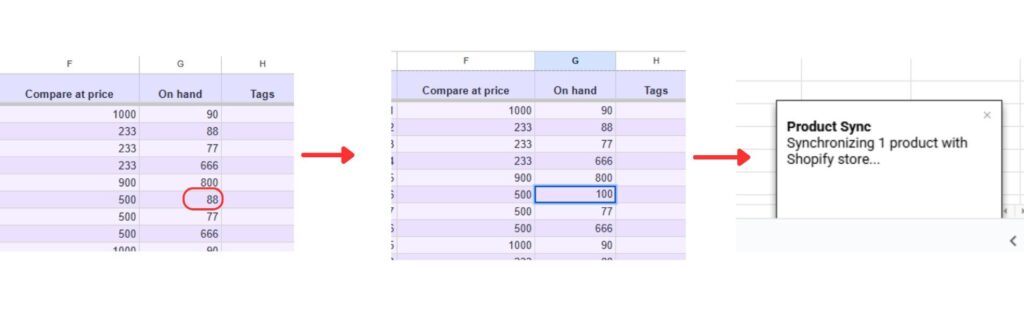
You can update inventory quantities directly from Google Sheets.
- Change the value.
- A notification popup will appear on the right-hand side showing Update Complete.
- Once updated, the new quantity is synced to Shopify instantly.
Manage Inventory Across Variants #
Each row in the sheet represents a specific product variant.
This means you can:
- update inventory per variant (size, color, etc.)
- manage products with multiple options safely
- work with large catalogs without opening Shopify admin
Variant-level updates ensure accurate stock tracking.
Update Product Prices from Google Sheets #
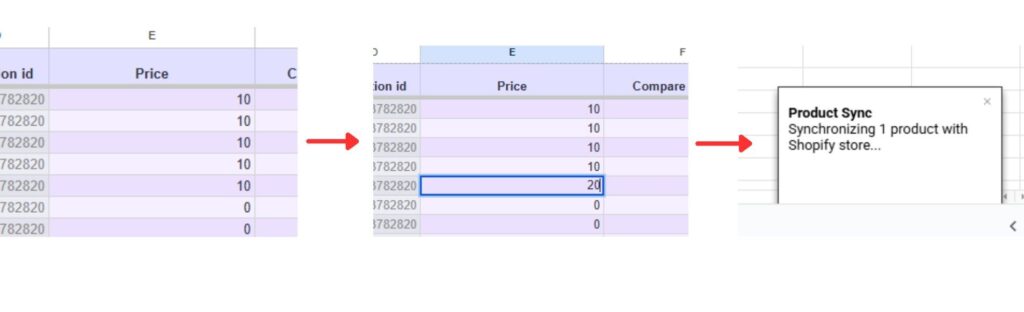
You can also manage pricing directly from the sheet.
- Edit the Price column to change the selling price.
- Changes sync back to Shopify just like inventory updates.
Use Compare-at Price for Discounts #
FlexSync supports updating Compare-at Price from Google Sheets.
How it works:
- Set the Compare-at Price higher than the Price.
- Shopify will display the product as discounted.
- Removing or lowering the Compare-at Price removes the discount.
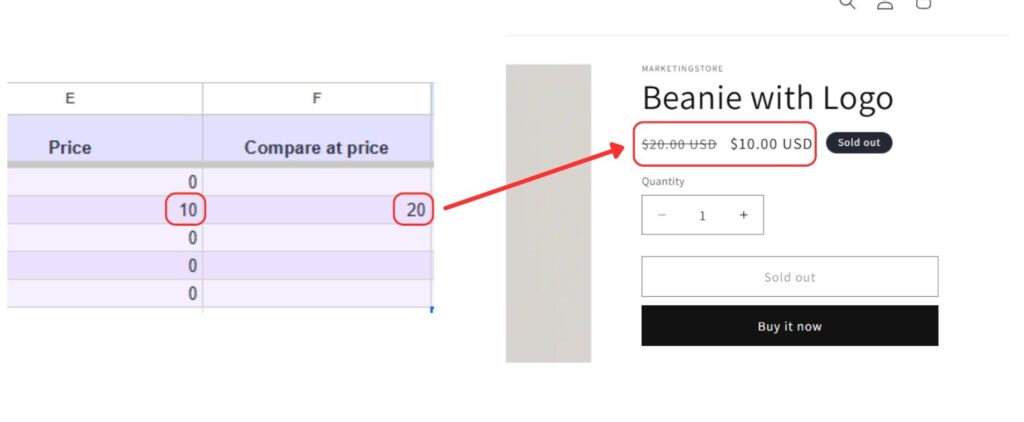
This makes it easy to manage promotions directly from a spreadsheet.
Bulk Editing in Google Sheets #
You can use standard Google Sheets actions to work faster:
- copy & paste values
- fill down cells
- use keyboard shortcuts
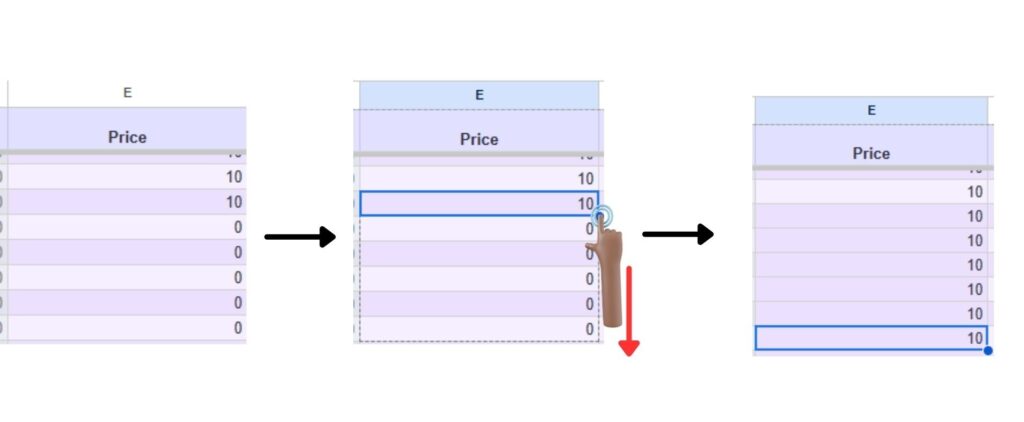
As long as you only edit editable columns, bulk actions are safe and supported.
For large-scale or advanced operations, see the Bulk Updates guide. 👈
What Happens After an Update #
Depending on your sync settings:
- Auto Sync ON: changes update Shopify instantly
- Auto Sync OFF: changes wait until you manually sync from the dashboard
FlexSync always uses system IDs to match rows correctly, so sorting or rearranging rows will not break syncing.
Good Practices for Inventory & Pricing Updates #
- Double-check values before pasting large changes
- Keep locked columns unchanged
- Use filters in the dashboard if you want to manage only specific products
- Make smaller test edits before large updates if you’re new