FlexSync provides built-in Shopify multilingual support, allowing global merchants to use the app interface in their preferred language. By updating the preferred language in your Shopify profile, the FlexSync interface will automatically display in your selected language.
This document explains how to change your preferred language so you can use FlexSync in any of its supported languages.
Prerequisites #
Before proceeding, ensure the following:
- You have access to your Shopify Admin account
- You are logged into your Shopify store
- FlexSync is installed and active on your Shopify store
Supported Languages #
FlexSync currently supports the following languages for its multilingual interface:
- English
- Spanish
- French
- German
- Turkish
More languages will be added in future updates.
Steps to Change the Language #
Follow the steps below to change the language used in FlexSync.
1. Log in to Shopify Admin #
Sign in to your Shopify store using your administrator account credentials.
2. Open Your Shopify Profile #
- In the Shopify Admin dashboard, click your profile icon located in the top-right corner.
- Open your Shopify Profile.
3. Navigate to General Settings #
- In the profile settings page, locate the General section.
- Scroll down until you find the Preferred Language option.
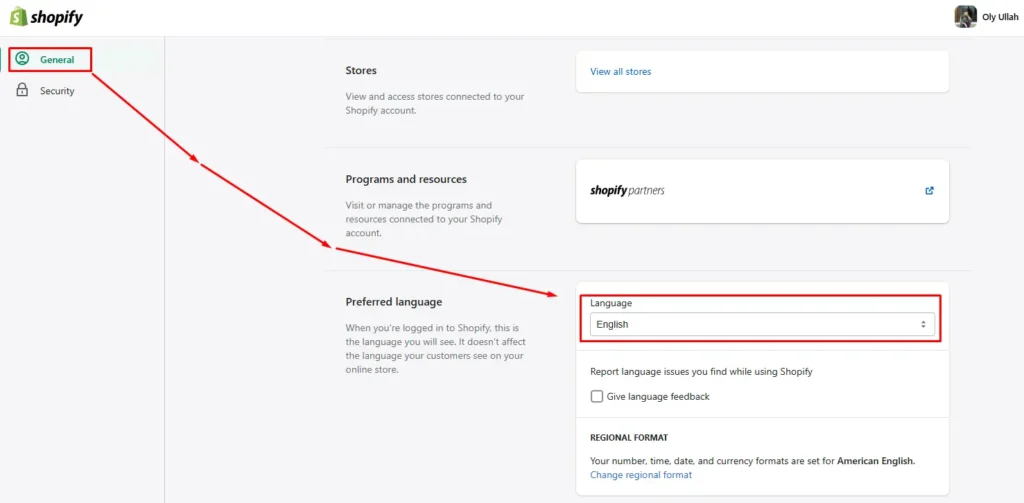
4. Select Your Preferred Language #
- Click the Preferred Language dropdown.
- Choose one of the supported languages (English, Spanish, French, Germam, and Turkish)
5. Save and Refresh #
- Save the updated setting.
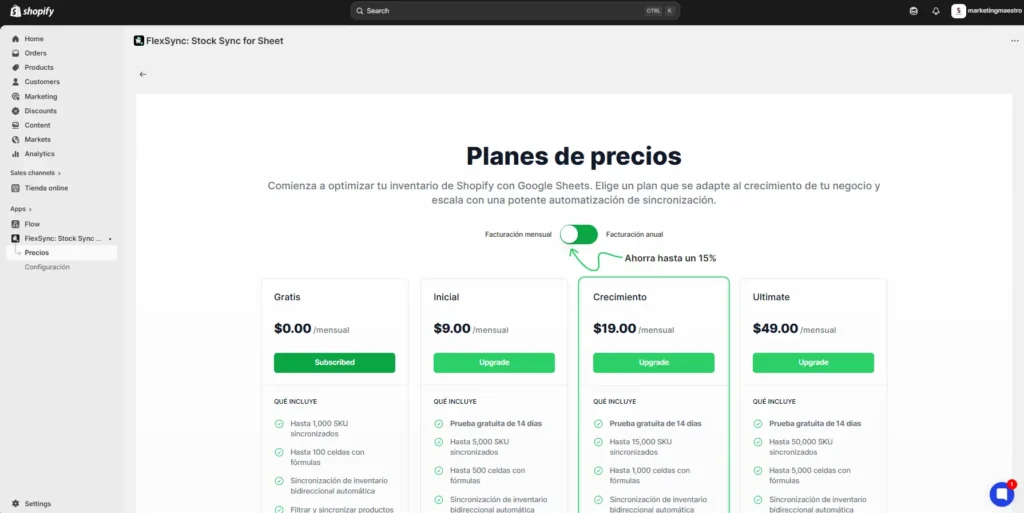
- Refresh or reload your Shopify admin page. Once the page reloads, the FlexSync interface will automatically appear in the selected language.
Important Notes #
- Changing the Preferred Language only affects the Shopify admin interface and installed apps like FlexSync.
- It does not change the language displayed to customers on your storefront.
- Each user can set their own preferred language independently.
Troubleshooting #
If the language does not update:
- Refresh the browser page.
- Log out and log back into your Shopify account.
- Ensure the selected language is supported by FlexSync.