Updating product descriptions one by one in Shopify is slow. If you have 50 products, it takes a full afternoon. If you have 500, it takes days.
And those descriptions matter more than most store owners realize. According to reports, 83% of shoppers would abandon an ecommerce site because of insufficient product information. Bad descriptions do not just hurt your SEO. They cost you sales.
But the good news is that Shopify gives you more than one way to bulk edit product descriptions. Some methods are built right into your admin. Others use tools like Google Sheets to make the process faster and less risky.
This guide covers four methods, with honest pros and cons for each.
Table of Contents
Why Bulk Editing Product Descriptions Matters
Product descriptions are one of the most overlooked parts of a Shopify store. A weak description tells shoppers what a product is. A strong one convinces them to buy it.
According to reports, inadequate product descriptions deter over 57% of shoppers from completing a purchase. That is more than half your traffic leaving without buying, not because of your price or your product, but because your copy did not do its job.
If you are refreshing your catalog, running a seasonal update, or fixing inconsistent copy across hundreds of products, doing it one at a time is not a real option.
Method 1: Shopify’s Built-in Bulk Editor
The fastest option for small updates. No downloads, no uploads, no extra tools.
How it works:
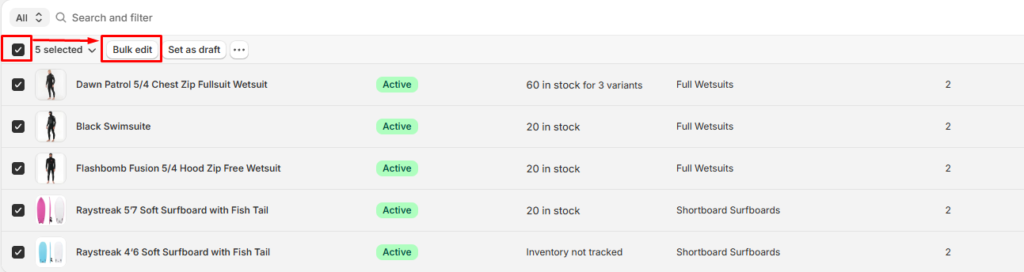
- Go to Products in your Shopify admin.
- Use the checkboxes to select the products you want to edit.
- Click the Bulk edit button that appears.
- A spreadsheet-like screen opens. Double-click any description cell to edit it.
- Make your changes and click Save.
That’s it. Your updates go live right away.
Best for: Stores with under 50 products, or when you need to fix a few descriptions quickly.
Limitations:
- You edit each description manually, one cell at a time.
- No find-and-replace function.
- Not practical for stores with large catalogs.
- You cannot copy-paste formatted HTML into this editor reliably.
Method 2: CSV Export and Import
This is the most commonly recommended method for large-scale updates. It works, but it comes with risk if you are not careful.
How it works:
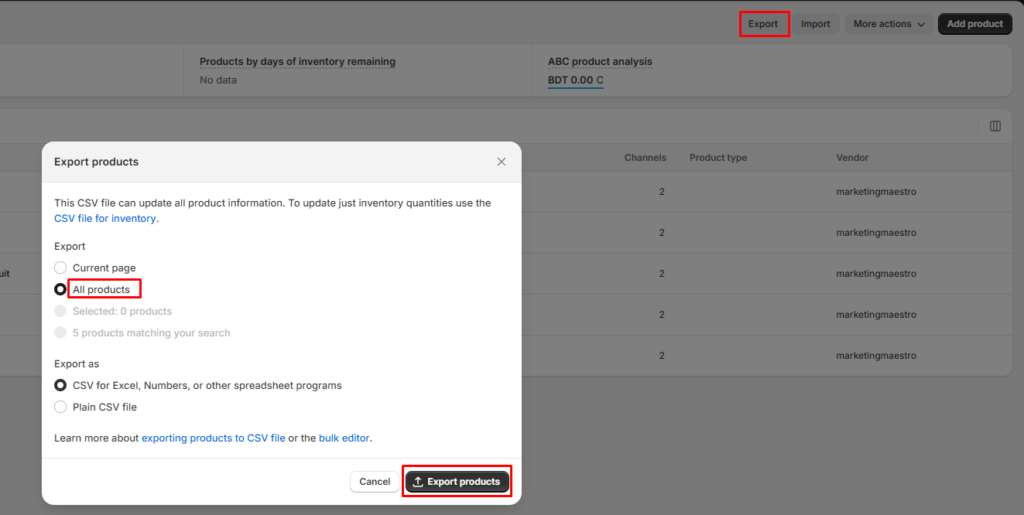
- Go to Products and click Export.
- Choose to export your current page or your full catalog.
- Open the CSV file in Google Sheets or Excel.
- Find the Body (HTML) column. This is where your product descriptions live.
- Edit the descriptions directly in that column.
- Save the file as a CSV and go back to Products > Import.
- Upload the file and check the Overwrite products with matching handles box.
- Click Import products.
Best for: One-time mass updates when you are confident working with spreadsheets.
Limitations and risks:
- Product descriptions are stored as raw HTML in the CSV. If you are not comfortable with HTML, formatting can break easily.
- A mistake during import can overwrite or delete product data across your whole catalog. Always keep a backup of your original CSV before making changes.
- The import process does not give you a live preview. You only see the result after it is done.
- Shopify’s CSV import can struggle with special characters and curly quotes. This is a common source of formatting errors.
Tips to avoid problems:
- Use Google Chrome when uploading the CSV back into Shopify.
- Do not change column order in the spreadsheet.
- Use straight quotes, not curly ones.
- Test on 2 to 3 products first before doing a full import.
Method 3: Bulk Edit Product Descriptions with Google Sheets (FlexSync)
This is the most flexible method for stores that need to update descriptions regularly, not just once.
FlexSync is a Shopify app that connects your store directly to a Google Sheet. Instead of exporting and re-importing CSV files, you edit your product data live in Google Sheets and the changes sync back to Shopify automatically.
How it works:
- Install FlexSync and connect it to your Google account.
- Export your products to a connected Google Sheet.
- Edit the description column for any product or variant.
- With Auto Sync on, your Shopify store updates instantly. No upload needed.
What you can bulk edit from Google Sheets:
- Product descriptions
- Prices and compare-at prices
- SKUs and barcodes
- Inventory quantities per variant
- Metafields
- And a lot more
You can also use standard Google Sheets actions like copy-paste, fill-down, and formulas to update multiple rows at once. This makes it much faster than editing cell by cell.
Best for: Stores that update their catalog regularly, teams managing large product lists, and anyone who prefers working in spreadsheets rather than Shopify admin.
Limitations:
- Requires installing a third-party app.
- The free plan supports up to 500 SKUs. Larger stores will need a paid plan (starting at $9/month).
Why this beats CSV for ongoing updates:
With the CSV method, every update is a four-step process: export, edit, save, and upload.
With FlexSync, you open your Google Sheet, make the change, and you’re done. There’s no risk of accidentally overwriting your whole catalog because you can undo changes with Ctrl+Z, and you never import a full file over your live store.
Method 4: Third-Party Bulk Editor Apps
Some apps give you more control over large-scale imports and exports, especially for stores that need to handle complex product data.
These apps typically work through an Excel or CSV file, similar to Shopify’s native import. The difference is that they offer better error handling, more column control, and the ability to import only specific fields (like just descriptions) without touching everything else.
Best for: Large Shopify stores with 1,000+ products, merchants migrating from another platform, or teams that need scheduled or recurring bulk updates.
Limitations:
- Most have paid plans for large catalogs.
- There is a learning curve to set up exports and imports correctly.
- You are still working with static files, not a live connection.

Which Method Should You Use?
| Situation | Best Method |
|---|---|
| Quick fix on a few products | Shopify Built-in Bulk Editor |
| One-time update for a large catalog | CSV Export/Import |
| Regular ongoing updates | Google Sheets with FlexSync |
| Complex migrations or large-scale data work | Third-party app |
Tips for Writing Better Product Descriptions While You’re at It
Since you’re already opening up your descriptions for a bulk edit, use the opportunity to improve them too.
- Lead with the benefit, not the feature. “Keeps coffee hot for 12 hours” is more compelling than “double-walled stainless steel.”
- Keep paragraphs short. Two to three sentences per paragraph makes descriptions easier to scan.
- Use your primary keyword naturally. If someone searches for the product, your description should reflect the language they use.
- Add specifics. Dimensions, materials, care instructions, and compatibility details help shoppers make confident buying decisions.
- Avoid filler phrases. Phrases like “high-quality product” or “perfect for everyone” add no real information.
Common Questions
Can I bulk edit product descriptions for free on Shopify?
Yes. The built-in bulk editor and the CSV export/import method are both free. They are available on all Shopify plans.
Will bulk editing affect my product SEO?
It can, in a good way. Updating thin or duplicate descriptions with unique, helpful content can improve how your products rank in search results. Just make sure you are not replacing descriptions with blank content during import.
Can I bulk edit descriptions for specific variants?
With the CSV method, each variant is a separate row, so you can edit variant-level data. With FlexSync and Google Sheets, each row in your sheet also represents a specific variant, so you have full control at that level.
What happens if I make a mistake during a CSV import?
You can re-import your original CSV file to undo the changes. This is why it is important to save a copy of the original file before making any edits. With FlexSync, you can undo edits directly in Google Sheets before they sync, which is a safer workflow.
Final Thoughts
Bulk editing product descriptions in Shopify does not have to be complicated. The built-in bulk editor works well for small updates. The CSV method covers most one-time needs. And if you update your catalog regularly, a live Google Sheets connection through FlexSync saves more time and reduces the risk of errors compared to the import/export cycle.
Start with whichever method matches your current catalog size, and upgrade your workflow as your store grows.
