FlexSync now supports Cost Per Item and Inventory Policy sync between Shopify and Google Sheets. Both fields support bi-directional sync, allowing you to export data from Shopify, edit it in Google Sheets, and sync changes back to Shopify.
Cost Per Item: #
The Cost Per Item column lets you view and manage product costs directly from Google Sheets. You can:
- Export existing Shopify cost values.
- Update costs in Google Sheets.
- Sync changes back to Shopify.
Inventory Policy: #
The Inventory Policy column controls whether a product can be sold when inventory reaches zero. Supported values:
- DENY – Stop selling when out of stock.
- CONTINUE – Continue selling when out of stock.
You can update this value directly in Google Sheets and sync it back to Shopify.
How to Enable #
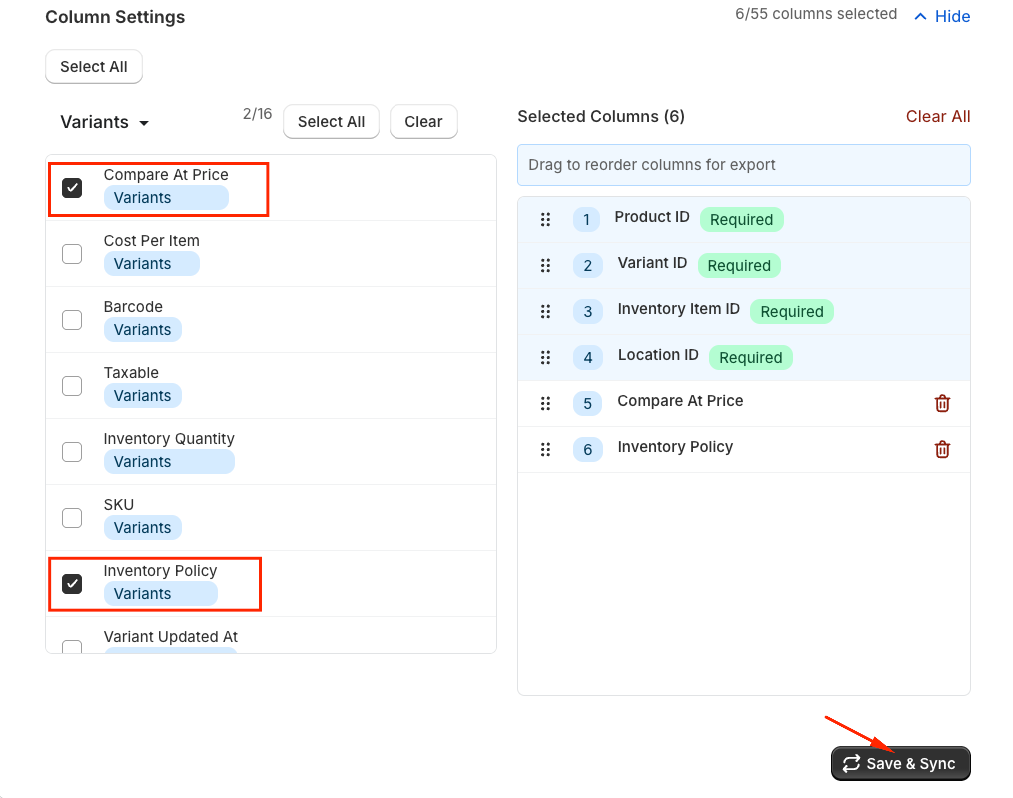
- Go to Column Settings.
- Open the Configuration section.
- From the Available Columns panel, enable:
- Cost Per Item
- Inventory Policy
- Click Save & Sync to complete the export.
Using the Fields #
After exporting, your spreadsheet will include dedicated columns for:
- Cost Per Item
- Inventory Policy
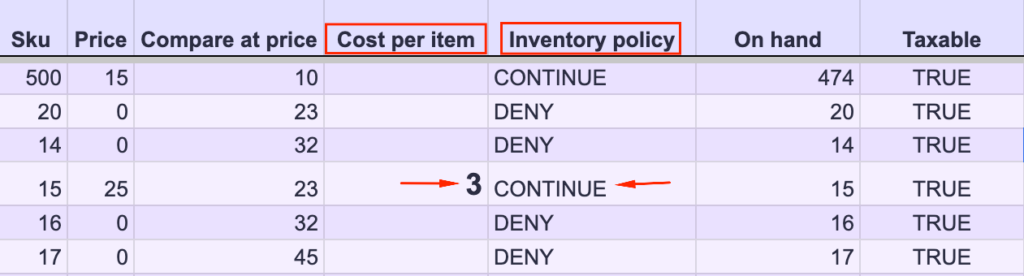
Simply edit/update the values in Google Sheets it syncs to update Shopify automatically.
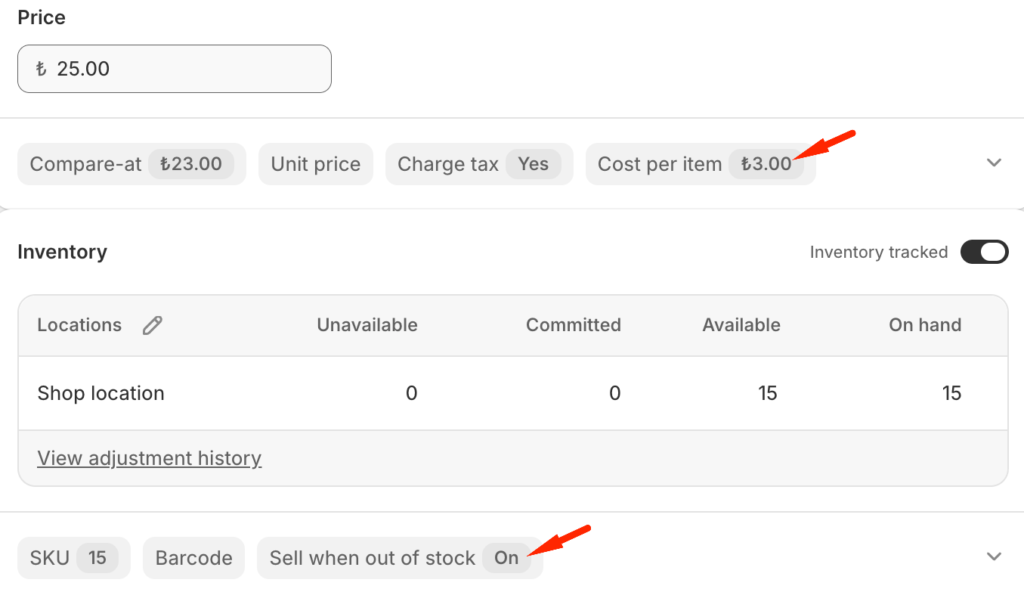
Tailored for Your Needs #
Bulk Cost Updates #
A merchant receives new supplier pricing for hundreds of products.
Instead of opening each product in Shopify, they update the Cost Per Item column in Google Sheets and sync the changes back to Shopify in minutes.
Manage Out-of-Stock Sales #
A store wants selected products to remain available even when inventory reaches zero.
The merchant changes the Inventory Policy value from DENY to CONTINUE for those variants and syncs the updates to Shopify.
Inventory Management Team Workflow #
The operations team manages inventory data in Google Sheets while the store runs on Shopify.
Using FlexSync, they can maintain Cost Per Item and Inventory Policy directly from the spreadsheet, keeping product information accurate without logging into Shopify for every update.


