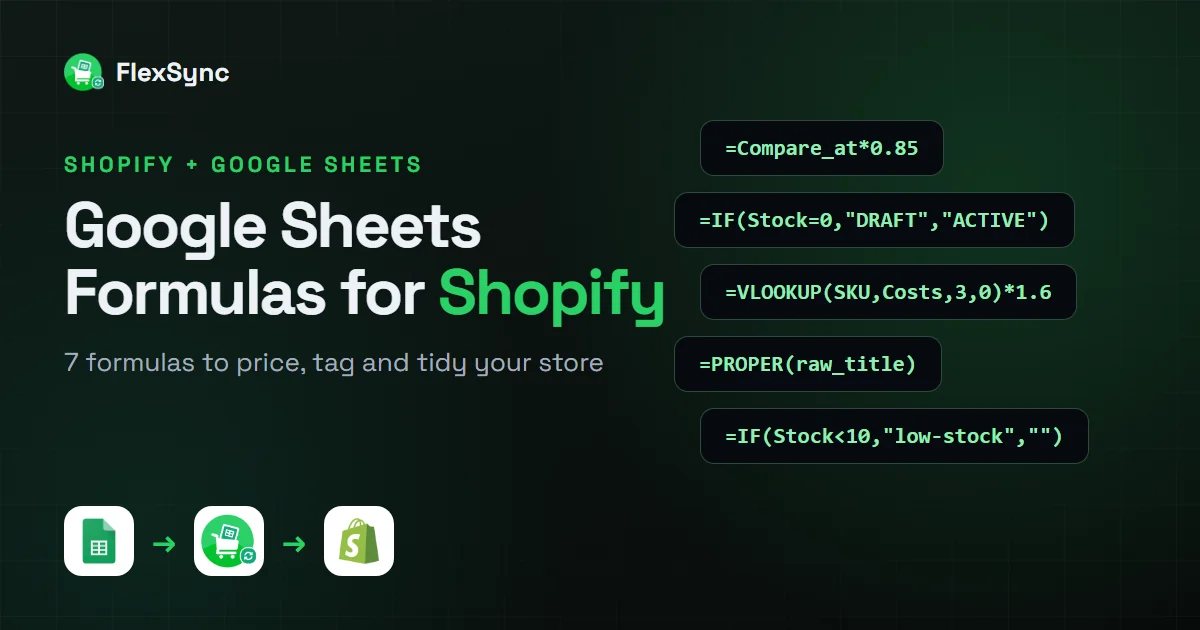
Changing one price in Shopify takes a few clicks. Changing 300 prices, tagging every low-stock item and hiding the products that just sold out takes a whole afternoon.
Google Sheets formulas for Shopify turn that afternoon into a few minutes. You write one formula, fill it down a column, and every product gets the right price, status, tag or SKU.
This guide gives you 7 copy-ready formulas. For each one, you will see what it changes in your store and who it helps most. You will also learn how to send the results back to Shopify, which most spreadsheet guides skip.
⚡ Key takeaways
- ✓Google Sheets formulas can set prices, statuses, tags, titles and SKUs for your whole catalog at once.
- ✓Shopify does not run spreadsheet formulas. You calculate in Google Sheets and sync the results with a two-way app such as FlexSync.
- ✓The 7 formulas in this guide cover sale prices, markups, supplier prices, sold-out products, low-stock tags, clean titles and SKUs.
- ✓Test every formula on a few rows first. Shopify only accepts valid values, such as ACTIVE, DRAFT or ARCHIVED for product status.
Table of Contents
Why Use Google Sheets Formulas to Manage a Shopify Store?
The Shopify admin is built for editing products one at a time. The bulk editor helps, but it cannot do math. You cannot tell it “take 15% off everything” or “set the price to cost times 1.6”.
A spreadsheet can. And the busy seasons keep getting busier.
- Shopify merchants sold a record $14.6 billion over Black Friday Cyber Monday 2025, according to Shopify’s BFCM results (December 2, 2025). More sales mean more price changes and faster stock swings.
- Manual data entry costs US companies about $28,500 per employee each year, and workers spend more than 9 hours a week moving data, according to Parseur’s survey of 500 US professionals (2025).
- Out-of-stocks cost retailers an estimated $1.16 trillion a year worldwide, according to IHL Group’s inventory distortion study (September 2025).
Formulas cut the copying, cut the typos and react to your stock levels. That is where they save real time.
Formulas vs. the Shopify bulk editor vs. CSV import
| Method | Can do math? | How changes reach Shopify | Best for |
|---|---|---|---|
| Shopify bulk editor | No | You type each value | Quick fixes on a few products |
| CSV export and import | Yes, inside the file | Re-import the whole file | One-time, large changes |
| Google Sheets formulas with FlexSync | Yes | Synced from the sheet | Ongoing pricing, stock and catalog rules |
With a CSV, you have to paste formula results as plain values before you import, and every change means a new import. We compare these options in more detail in our guide to bulk editing Shopify product prices.
How Google Sheets Formulas Reach Your Shopify Store
A normal Google Sheet is only a copy of your data. Change a price there and nothing happens in your store.
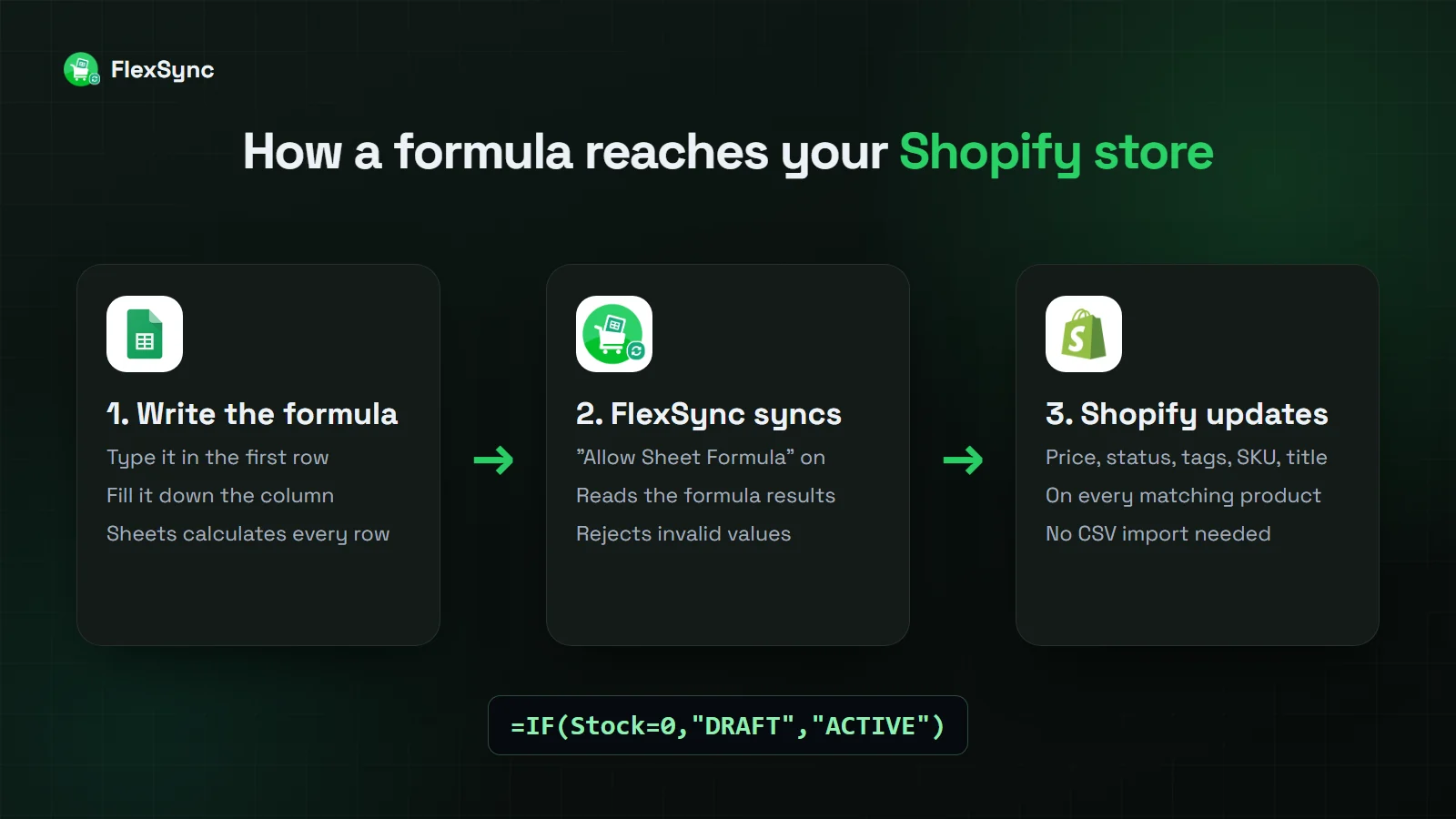
To use formulas on your live store, you need two-way sync. FlexSync connects Google Sheets to Shopify and puts every product and variant in its own row. When a cell changes, FlexSync sends the change to Shopify.
Formulas need one extra setting. Here is the setup:
- Install FlexSync and connect your Google Sheet.
- In FlexSync settings, turn on Allow Sheet Formula.
- Type your formula in the first product row of a column, such as Price.
- Fill the formula down the column. FlexSync sends each result to Shopify.
FlexSync’s formula feature guide says formula changes sync to Shopify on a schedule, about every 5 minutes. The Free plan includes 20 formula-driven cells. Paid plans go up to 10,000.
The columns used in this guide
The formulas below use the column letters from our test store’s FlexSync sheet. Check the header row in your own sheet and swap the letters if yours are different.
- L: Title
- Q: Compare-at price
- T: On hand stock
- W: Available stock
- X: SKU
- AA: A raw title column you add yourself
7 Google Sheets Formulas for Shopify (With Examples)
Each formula below goes in row 2 of the column named under “Shopify field”. Then you fill it down to the last product.
1. Run a store-wide sale with one formula
Shopify field: Price
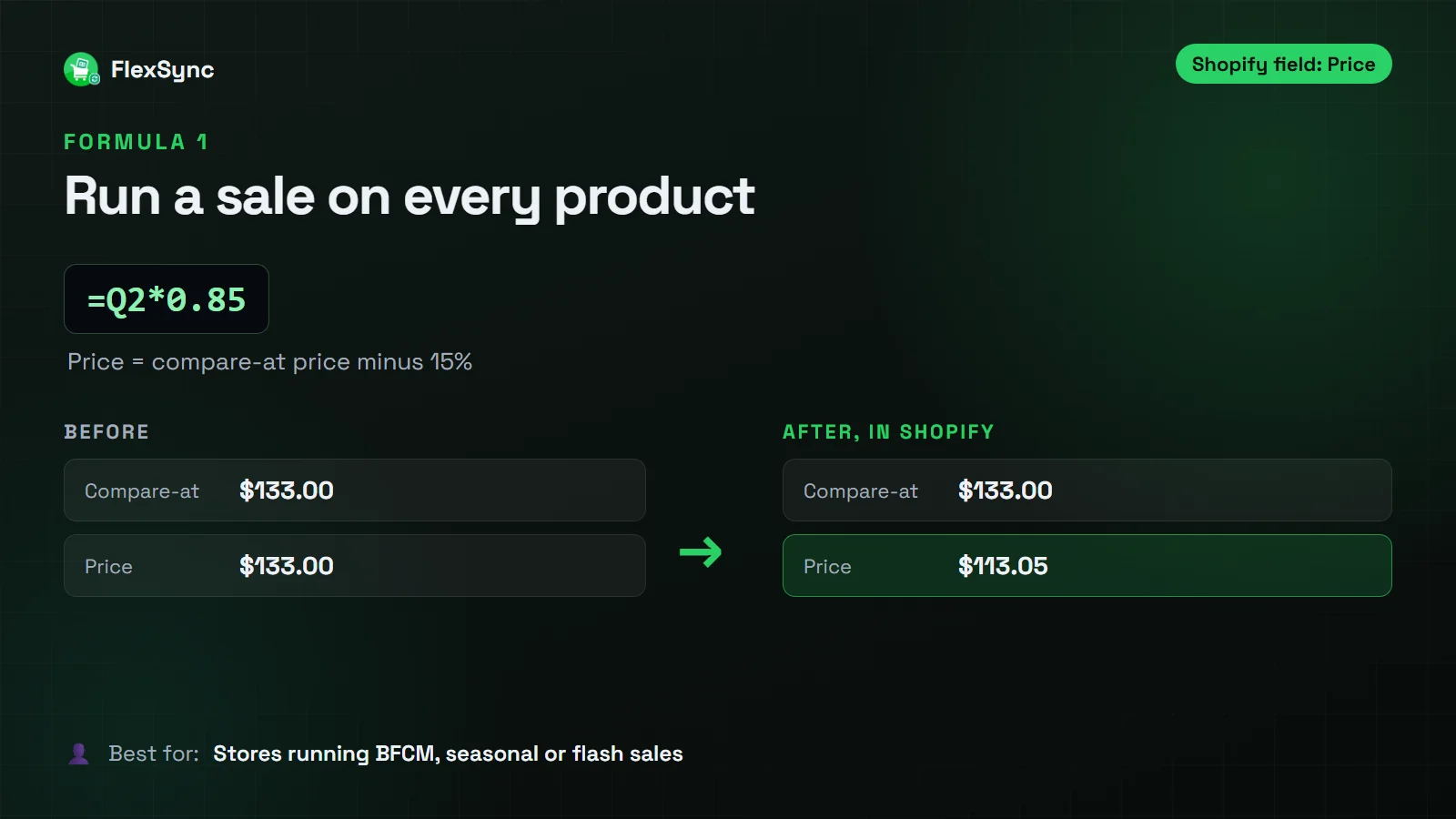
=Q2*0.85This sets each price to 85% of its compare-at price. That is 15% off. Shopify then shows the compare-at price crossed out next to the new sale price.
- Before: compare-at price $133.00, price $133.00
- After: compare-at price $133.00, price $113.05
Want prices that end in .99? Use =ROUNDUP(Q2*0.8,0)-0.01. A $133.00 product becomes $106.99.
Who should use it: Stores running BFCM deals, seasonal clearances or flash sales.
Tip: To end the sale, change the formula to =Q2 and fill it down again. Every price goes back to normal.
2. Set prices from cost with a markup
Shopify field: Price
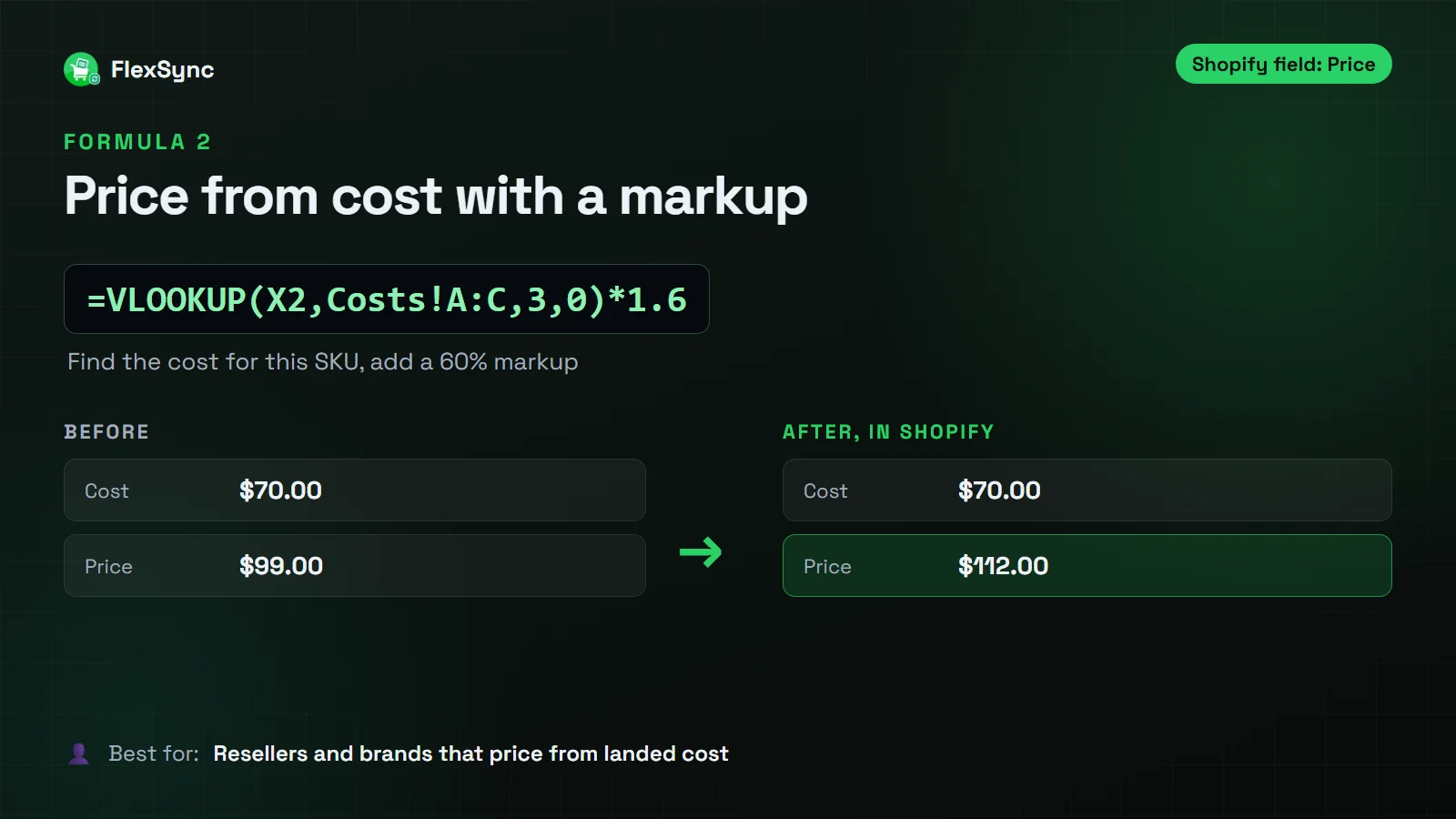
=VLOOKUP(X2,Costs!A:C,3,0)*1.6Add a tab called Costs with your SKUs in column A and each item’s cost in column C. The formula finds the cost for each SKU and multiplies it by 1.6. That is a 60% markup.
- Before: cost $70.00, price $99.00
- After: cost $70.00, price $112.00
Markup and margin are not the same thing. Markup is added on top of cost. Margin is the share of the price you keep. If you want a 35% margin, use this instead:
=ROUND(VLOOKUP(X2,Costs!A:C,3,0)/(1-0.35),2)A $70.00 item is then priced at $107.69.
Who should use it: Resellers, wholesalers and brands that price from their landed cost.
Tip: If a SKU is missing from the Costs tab, VLOOKUP returns #N/A. FlexSync rejects values that are not numbers, so the error will not reach your store. Fix the missing SKU and fill the formula down again.
3. Sync supplier prices with IMPORTRANGE
Shopify field: Price
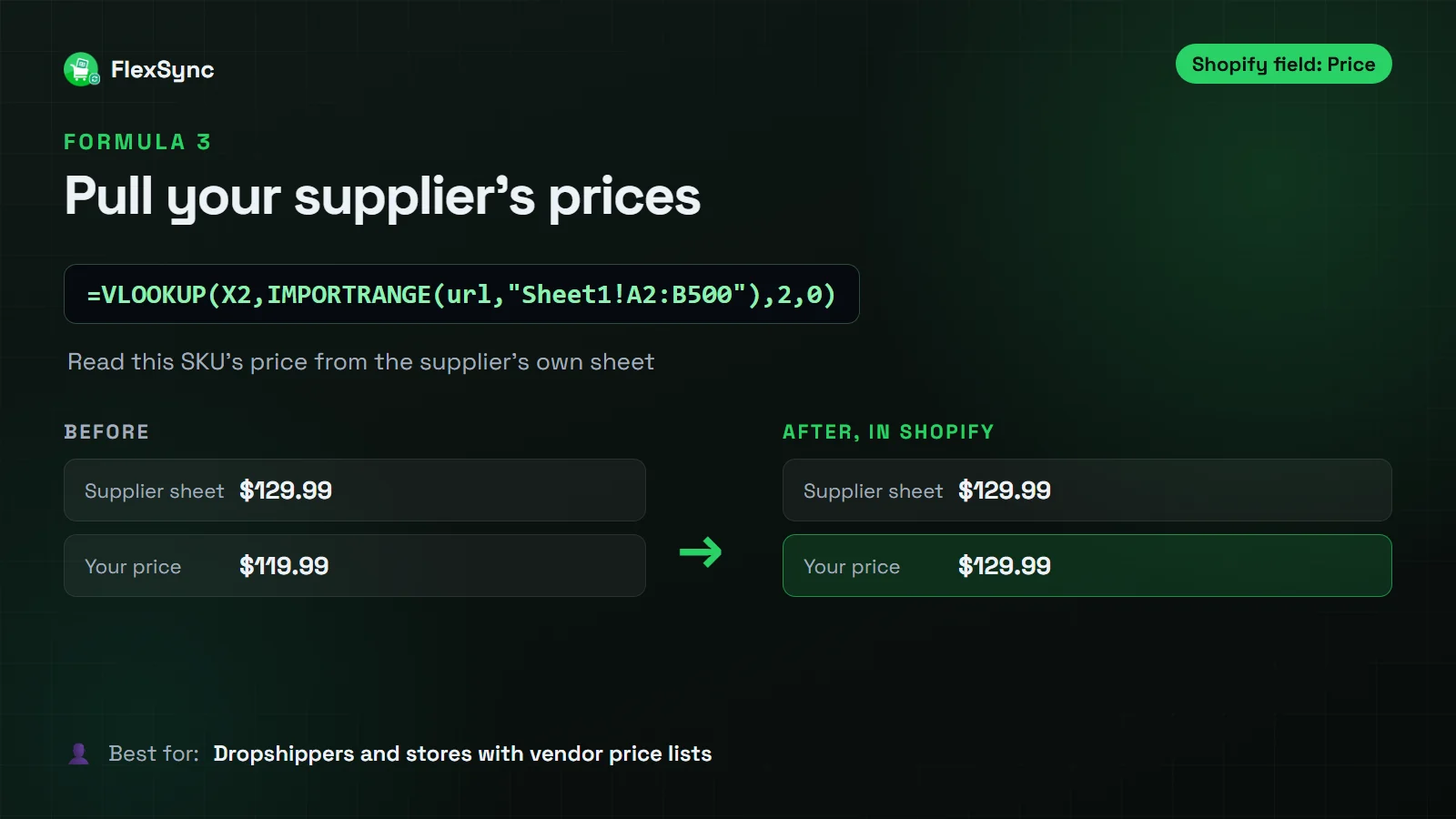
=VLOOKUP(X2,IMPORTRANGE("supplier_sheet_url","Sheet1!A2:B500"),2,0)IMPORTRANGE reads data from another Google Sheet. Here, it reads your supplier’s price list and finds the price for each of your SKUs. No downloads and no CSV files.
- Before: supplier price $129.99, your price $119.99
- After: supplier price $129.99, your price $129.99
The first time you use IMPORTRANGE, Google asks you to click Allow access. Do this in a separate tab first. FlexSync’s guide suggests pulling vendor data into its own tab, then pointing your product tab at that tab. That way an empty or #REF! value never lands in a price cell.
To add your margin on top of the supplier price, multiply the result. For example, add *1.3 to the end of the formula.
Who should use it: Dropshippers and stores that buy from suppliers who share a Google Sheet.
4. Hide sold-out products automatically
Shopify field: Status
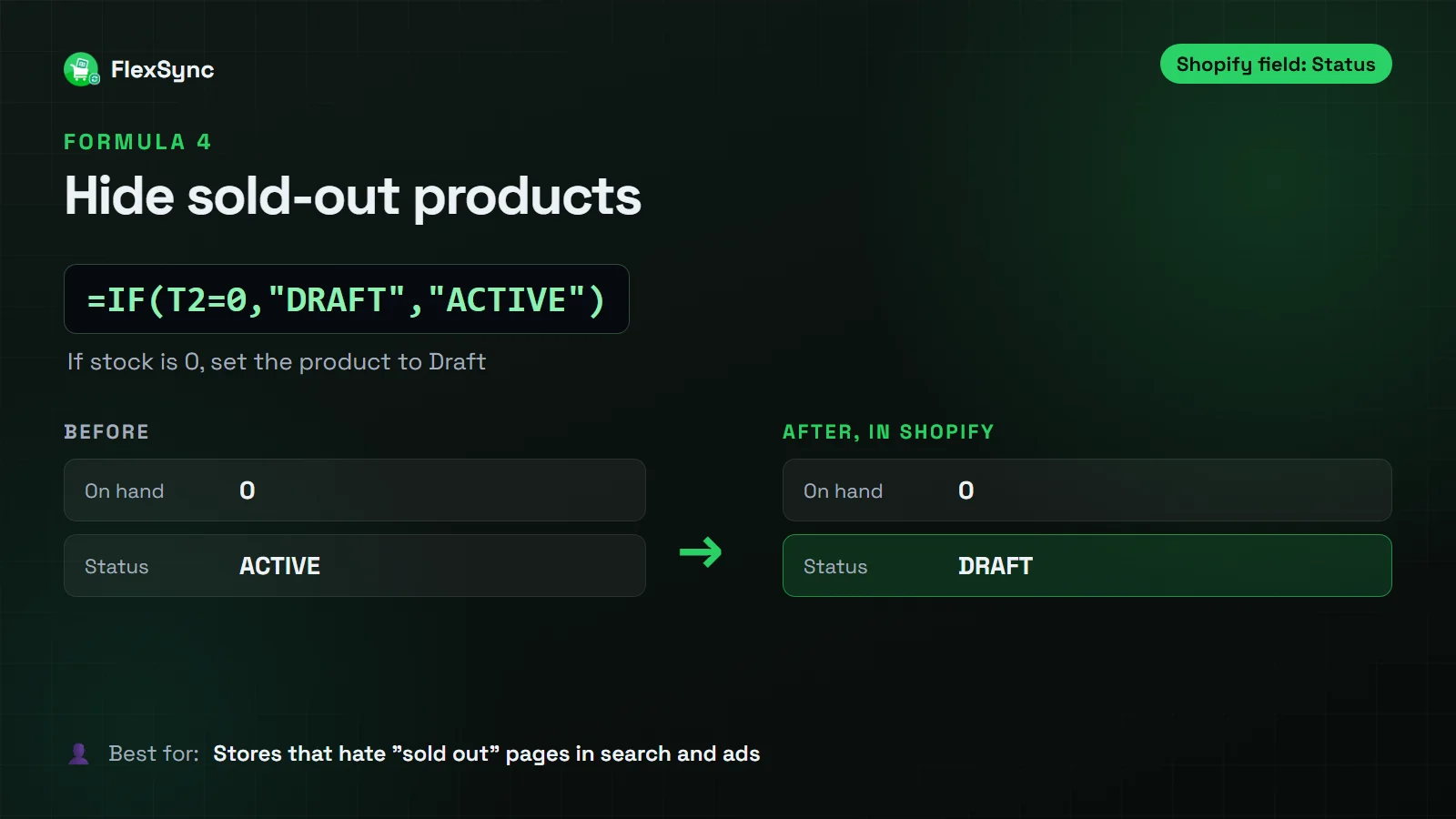
=IF(T2=0,"DRAFT","ACTIVE")If a product has 0 in stock, the formula sets it to Draft. Draft products are hidden from your online store. Everything else stays Active.
- Before: on hand 0, status ACTIVE
- After: on hand 0, status DRAFT
Shopify only accepts certain product status values. Use ACTIVE, DRAFT or ARCHIVED, spelled exactly like that. A word like “sale” will be rejected.
Who should use it: Stores that run ads or Google Shopping, sell one-off items or launch limited drops.
Tip: If you take pre-orders or sell on backorder, leave those products out of this formula. Otherwise they will be hidden when stock hits 0.
5. Tag low-stock products
Shopify field: Tags
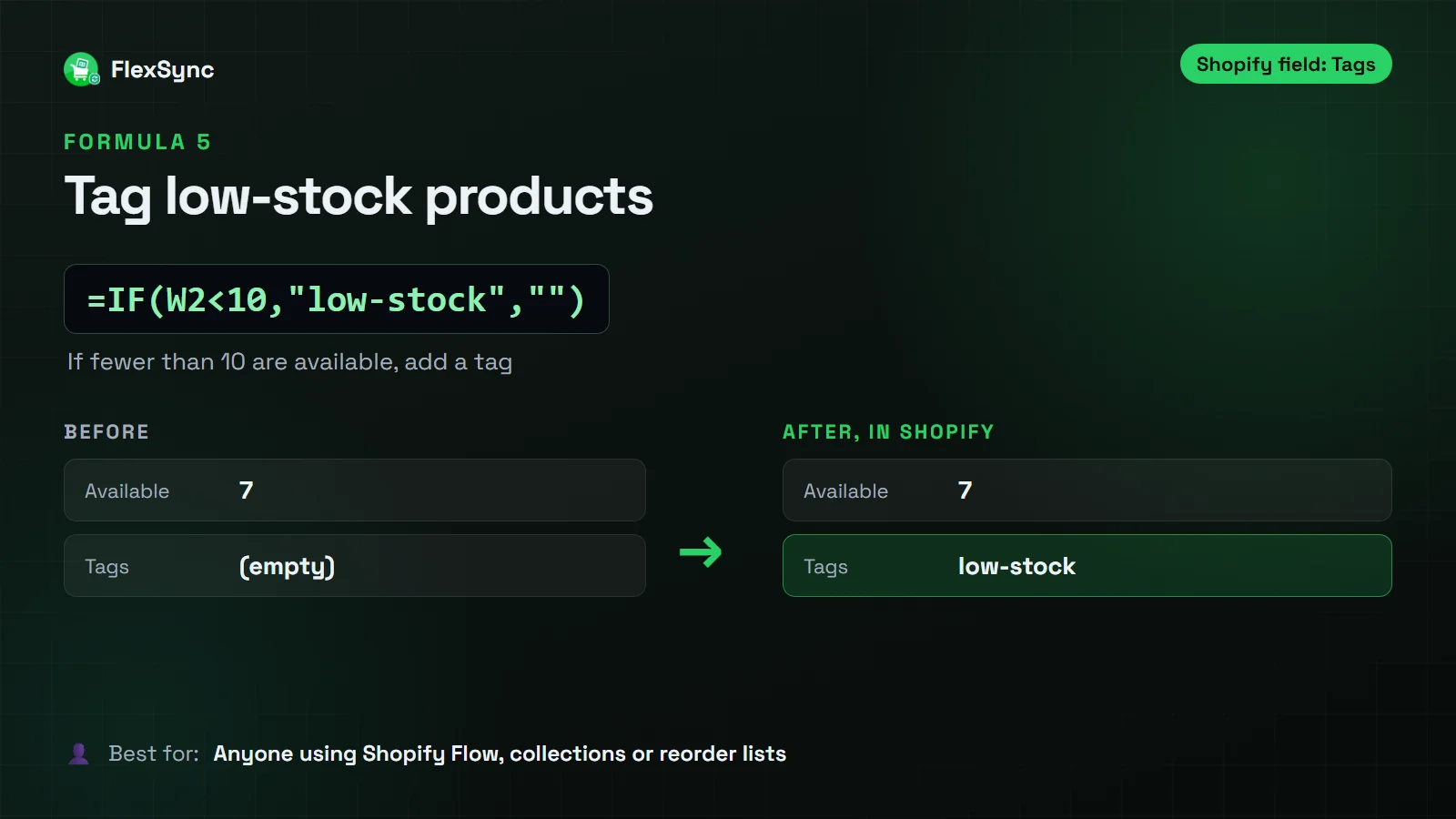
=IF(W2<10,"low-stock","")Any product with fewer than 10 available units gets the tag low-stock. You can use that tag to build an “Almost gone” collection, trigger a Shopify Flow alert or make a reorder list.
- Before: available 7, tags empty
- After: available 7, tags low-stock
This formula replaces the whole Tags cell. If your products already have tags, keep them in a helper column, such as AB, and join them:
=IF(W2<10,AB2&", low-stock",AB2)Who should use it: Anyone who uses collections, filters or Shopify Flow to react to stock levels.
6. Clean up messy product titles
Shopify field: Title
=PROPER(TRIM(AA2))TRIM removes extra spaces. PROPER capitalizes the first letter of each word. Together they fix supplier titles that come in all caps, all lowercase or with double spaces.
- Before: raystreak 5’7 soft SURFBOARD
- After: Raystreak 5’7 Soft Surfboard
Keep the raw titles in their own column, such as AA. A formula cannot read its own cell.
PROPER has one catch. It lowercases capitals inside a word, so “iPhone” becomes “Iphone”. Fix brand names with SUBSTITUTE:
=SUBSTITUTE(PROPER(TRIM(AA2)),"Iphone","iPhone")Who should use it: Stores that import titles from suppliers, marketplaces or old CSV files.

7. Generate SKUs automatically
Shopify field: SKU
=UPPER(LEFT(L2,3))&"-"&TEXT(ROW()-1,"0000")This takes the first 3 letters of the title and adds a running number. “Flashbomb Wetsuit” in row 4 becomes FLA-0003.
- Before: title Flashbomb Wetsuit, SKU empty
- After: title Flashbomb Wetsuit, SKU FLA-0003
The number comes from the row, so it changes if you sort or insert rows. Once your SKUs are in Shopify, copy the column and paste it back as values. That locks every SKU in place.
Who should use it: New stores, catalogs with missing SKUs and stores getting ready to connect a POS, warehouse or 3PL.

Shopify Formula Cheat Sheet
Save this table for later. It lists every formula in this guide.
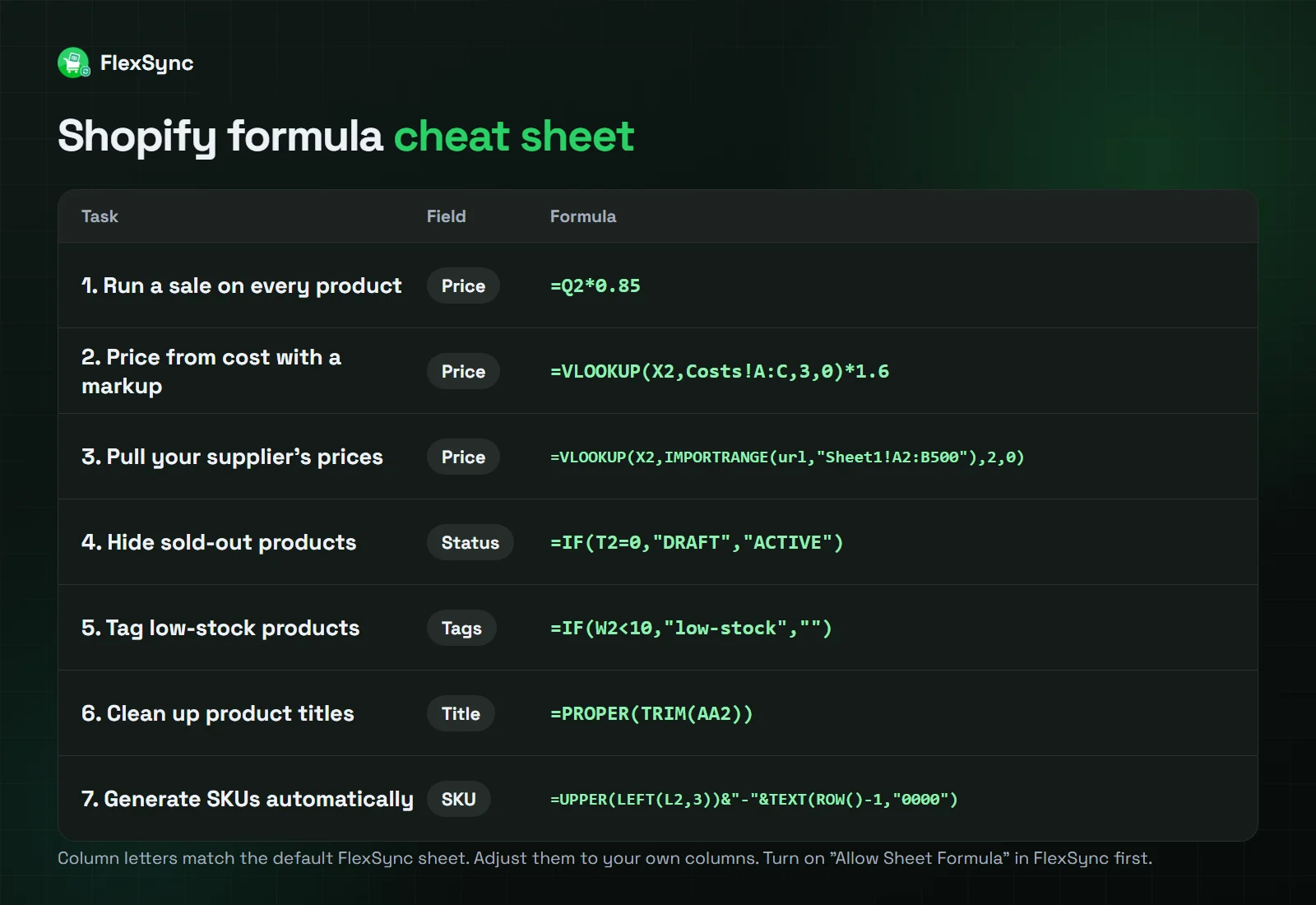
| If you want to… | Use this formula | Shopify field |
|---|---|---|
| Take 15% off every product | =Q2*0.85 | Price |
| Price from cost with a 60% markup | =VLOOKUP(X2,Costs!A:C,3,0)*1.6 | Price |
| Copy your supplier’s prices | =VLOOKUP(X2,IMPORTRANGE(url,"Sheet1!A2:B500"),2,0) | Price |
| Hide products that sold out | =IF(T2=0,"DRAFT","ACTIVE") | Status |
| Flag products that are running low | =IF(W2<10,"low-stock","") | Tags |
| Fix messy titles | =PROPER(TRIM(AA2)) | Title |
| Create missing SKUs | =UPPER(LEFT(L2,3))&"-"&TEXT(ROW()-1,"0000") | SKU |
Best Practices Before You Fill a Formula Down
A formula changes every row it touches. These habits keep your store safe.
- Test on 2 or 3 rows first. Then open those products in the Shopify admin and check the result.
- Keep source data in its own tab. Costs, raw titles and supplier data are easier to manage outside the product tab.
- Return values Shopify accepts. Prices must be numbers. Status must be ACTIVE, DRAFT or ARCHIVED. FlexSync rejects invalid values and resets the cell, so bad data does not reach your store.
- Watch your formula cell limit. The Free plan covers 20 formula-driven cells. Starter covers 1,000, Growth 5,000 and Ultimate 10,000.
- Resend changed results if needed. If a source value changes later, such as a supplier price, and you do not see it in Shopify after the next sync, fill the formula down again.
- Lock values that should never change. Paste SKUs as values once they are set.
Common Formula Errors and How to Fix Them
| What you see | Why it happens | How to fix it |
|---|---|---|
| #N/A in a VLOOKUP | The SKU is not in your lookup tab, or it has an extra space | Check the SKU exists. Wrap both sides in TRIM if needed. |
| #REF! from IMPORTRANGE | Google has not been given access to the other sheet | Use IMPORTRANGE in a spare tab and click Allow access. |
| “Status is invalid” | The formula returned a word Shopify does not accept | Use only ACTIVE, DRAFT or ARCHIVED. |
| “Price field must be a number” | The formula returned text or an error | Fix the error so the formula always returns a number. |
| Formula points at the wrong data | Columns moved after you wrote it | Check the header row and update the column letters. |
Who Should Use Google Sheets Formulas for Shopify?
Formulas pay off most when the same rule applies to many products. They are a great fit for:
- Stores with large or growing catalogs. One formula updates 50 or 5,000 rows in the same time.
- Stores that run frequent sales. Start and end a sale by changing one formula.
- Dropshippers and resellers. Supplier prices and costs flow into your prices with VLOOKUP and IMPORTRANGE.
- Ops teams and agencies. Shared rules in a shared sheet mean fewer mistakes across the team.
They are not worth it for everyone. If you sell a dozen products and rarely change them, the Shopify admin is enough.
Get Ready for BFCM With Formulas
Black Friday Cyber Monday is when formulas save the most time. A simple plan:
- A week before, add your sale formula in a copy of the Price column and test it on a few rows.
- On launch day, fill the sale formula down.
- Turn on the low-stock tag and auto-draft formulas so fast sellers are flagged or hidden.
- When the sale ends, switch the price formula back to
=Q2.
For the rest of your prep, use our BFCM checklist for Shopify.
Conclusion
Google Sheets formulas for Shopify let you manage your store with rules instead of clicks. One formula can run a sale, follow your supplier’s prices, hide sold-out products or tag stock that is running low.
The spreadsheet does the math. FlexSync sends the results to Shopify.
Start with one formula from this guide, test it on a few rows and build from there. You can see every formula with a live example on our Shopify Google Sheets formulas page. FlexSync’s Free plan includes 20 formula-driven cells, so you can try it today at no cost.
Frequently Asked Questions
Can I use Google Sheets formulas in Shopify?
Not directly. Shopify does not run spreadsheet formulas. You calculate values in Google Sheets and sync the results to Shopify with a two-way sync app such as FlexSync, with Allow Sheet Formula turned on.
Do formula results update Shopify automatically?
With Allow Sheet Formula on, FlexSync syncs formula results to Shopify on a schedule. Its guide says this takes about 5 minutes. If a recalculated value does not show up after the next sync, fill the formula down again to resend it.
Which Shopify fields can I change with formulas?
You can use formulas on the editable columns in your FlexSync sheet. This guide covers price, status, tags, title and SKU. Each formula must return a value that Shopify accepts for that field.
Can I pull supplier prices into Shopify with IMPORTRANGE?
Yes. Use IMPORTRANGE to read your supplier’s Google Sheet and VLOOKUP to match each SKU. Grant access in a separate tab first so an error never lands in a price cell.
Is there a free way to use Google Sheets formulas with Shopify?
Yes. FlexSync’s Free plan includes 20 formula-driven cells. Paid plans include 1,000 to 10,000 formula-driven cells and come with a 14-day free trial.
Can a wrong formula break my store?
FlexSync rejects values that Shopify cannot accept, such as text in a price field or an invalid status, and resets the cell. A formula can still return a valid but wrong number, so always test on a few rows first.
