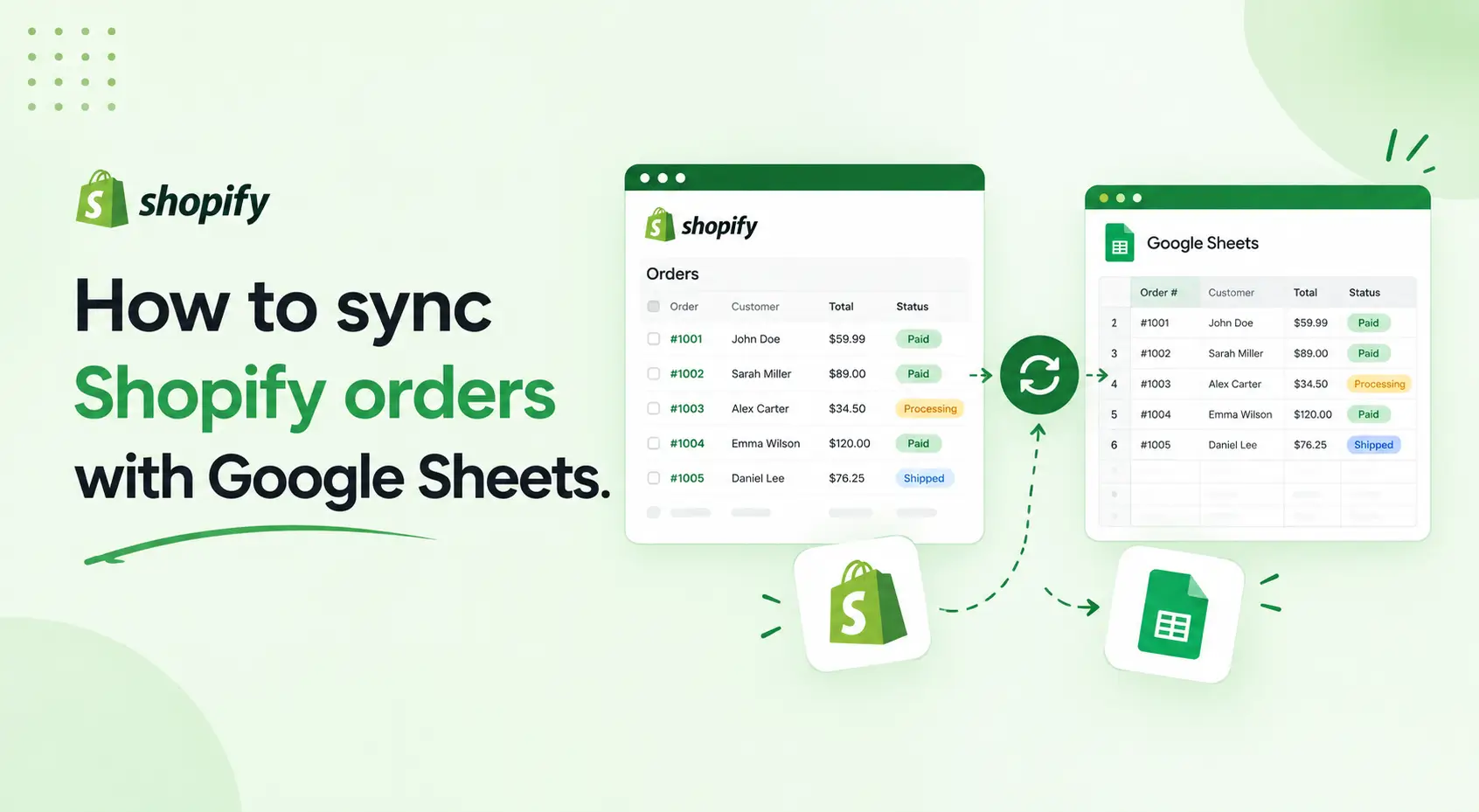
Shopify’s built-in order view works for basic day-to-day tasks. But once you need to report across time ranges, share data with your team, update fulfillment notes in bulk, or analyze trends in a spreadsheet, the admin falls short.
Google Sheets fills that gap. It gives you filtering, formulas, pivot tables, and shared editing that Shopify does not offer. The challenge is getting your order data there automatically and keeping it up to date.
This guide covers four ways to sync Shopify orders with Google Sheets. It includes a step-by-step setup for the fastest and most complete method, along with a comparison to help you pick the right approach for your store.
Quick Answer: How to Sync Shopify Orders with Google Sheets
The fastest method is FlexSync. Install it from the Shopify App Store, connect your Google account, enable Order Sync, choose the columns you need, and export.
Your orders appear in a live Google Sheet. You can edit supported fields and push changes back to Shopify in one click.
Other options include manual CSV export (free, one-way), Zapier or Make.com (event-based, mostly one-way), and Google Apps Script (requires coding).
Table of Contents
Why Sync Shopify Orders to Google Sheets?
Most Shopify store owners start with the default order export. You go to Orders, click Export, and get a CSV. That works once. But downloading a CSV every time you need current data is slow and error-prone. Here is what a live sync gives you instead.
A complete, up-to-date order history in one place
Every new order appears in your sheet automatically. You do not need to log in, export, or merge files. Your whole team can access the same live data without needing Shopify admin permissions.
Custom reports and dashboards
Shopify’s reporting is limited on lower-tier plans. With order data in Google Sheets, you can build pivot tables, revenue dashboards, and fulfillment trackers using formulas and charts. This is especially useful for weekly or monthly reporting to stakeholders.
Bulk updates without the Shopify admin
Updating fulfillment status, adding internal notes, or editing order fields one by one in the Shopify admin takes time. With a two-way sync, you can make changes in the sheet and push them to Shopify in one step. This is faster for stores with high order volume.
Collaboration without extra Shopify staff accounts
Shopify staff accounts cost money on most plans. Sharing a Google Sheet lets your operations team, logistics partner, or VA access and update order data without needing a paid seat.
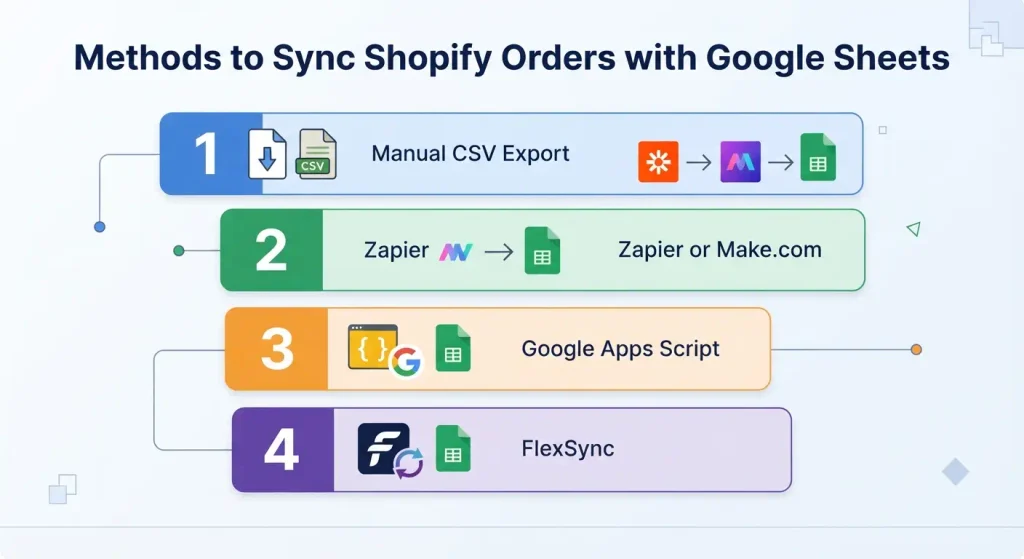
4 Ways to Sync Shopify Orders with Google Sheets
There are four main ways to get Shopify order data into Google Sheets. Each one has different trade-offs in cost, setup time, and sync capability.
Method 1: Manual CSV Export
Shopify lets you export orders as a CSV file from the Orders page. You download the file, then open or import it into Google Sheets.
- Cost: Free
- Sync direction: One-way only (Shopify to Sheets)
- Real-time: No. You must repeat the export every time you want fresh data
- Coding required: No
This method works for occasional reporting or a one-time data pull. It is not practical for daily operations because the data goes stale as soon as it is exported. There is also no way to push changes from Sheets back to Shopify.
Method 2: Zapier or Make.com
Zapier and Make.com are automation platforms that can send Shopify order events to Google Sheets. Each new order triggers an action that adds a row to your sheet.
- Cost: Free plans are limited; paid plans start at $19 to $49 per month
- Sync direction: Mostly one-way. Sending data from Sheets back to Shopify requires complex setups that break easily
- Real-time: Yes for new orders (event-based trigger)
- Coding required: Very little/No
The main limitation is that Zapier and Make only capture new events. They do not backfill historical orders. If a connection breaks, you miss orders during that window. Editing data in Sheets and syncing it back to Shopify is not supported in standard workflows.
Method 3: Google Apps Script
Google Apps Script is a JavaScript-based tool built into Google Sheets. You can write a script that calls the Shopify Admin API, pulls your orders, and writes them into a sheet on a schedule.
- Cost: Free (Shopify API is free; Google Apps Script is free)
- Sync direction: Two-way with custom logic
- Real-time: Yes if you schedule frequent runs
- Coding required: Yes. You need to write, test, and maintain the script
This method gives you the most control, but it also requires ongoing maintenance. API versions change, tokens expire, and rate limits can break the script. It is a good option if you have a developer available, but not practical for most store owners managing operations themselves.
Method 4: FlexSync (Recommended)
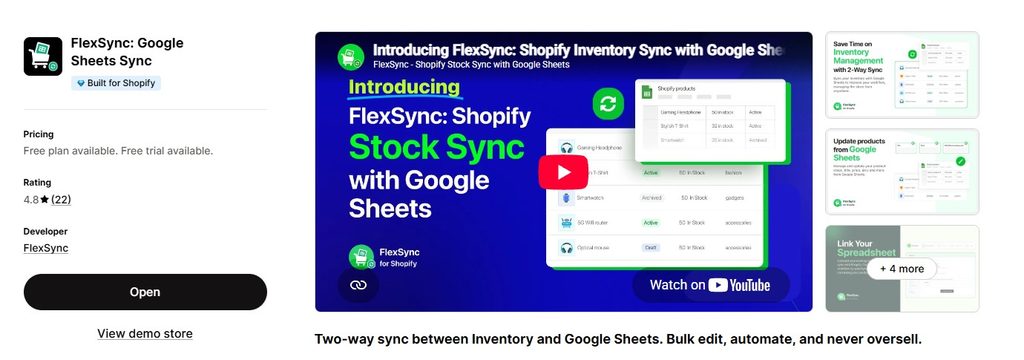
FlexSync is a native Shopify app that syncs your store data with Google Sheets. It includes a dedicated Order Sync feature that exports your orders to a connected sheet and lets you push supported changes back to Shopify, all without writing code.
- Cost: Free plan available; paid plans from $9/month
- Sync direction: Two-way
- Real-time: Yes for order export; push-back to Shopify requires one click
- Coding required: No
Unlike CSV exports, the sheet stays connected to your Shopify store. Unlike Zapier, it covers your full order history, not just new events. Unlike Apps Script, there is nothing to code or maintain.
FlexSync: two-way Shopify order sync without code
Export all Shopify orders to Google Sheets. Edit supported fields. Push changes back with one click. Free plan available, rated 4.9/5 on the Shopify App Store (2026).
Comparison: Which Method Is Right for Your Store?
| Method | Sync Direction | No Code | Auto Export | Starting Cost |
| Manual CSV export | One-way | Yes | No | Free |
| Zapier / Make.com | One-way (mostly) | Yes | Yes (event-based) | From $19/mo |
| Google Apps Script | Two-way | No | Yes (scheduled) | Free |
| FlexSync | Two-way | Yes | Yes | Free / from $9/mo |
If you need a free one-time pull, use manual CSV. If you only need new orders logged automatically and have no need to edit data, Zapier works. If you have a developer and want full control, Apps Script is the most flexible. For everything else, FlexSync is the fastest path to a live, two-way sync.
How to Sync Shopify Orders with Google Sheets Using FlexSync
Setup takes under 5 minutes. You do not need a developer or any coding knowledge.
Step 1: Install FlexSync from the Shopify App Store
Go to the FlexSync listing on the Shopify App Store. Click Add app and follow the installation prompts. FlexSync will ask for permission to read your Shopify orders.
Step 2: Connect your Google account
After installation, open FlexSync from your Shopify admin. Click Connect Google Account and authorize FlexSync to access Google Sheets. You can connect to an existing sheet or create a new one.
👉 Read the Setup Documentation
Step 3: Enable Order Sync
In FlexSync, go to Advance Settings and find the Order Sync toggle. Enable it. This activates the order export module. Without this step, FlexSync only syncs product and inventory data.
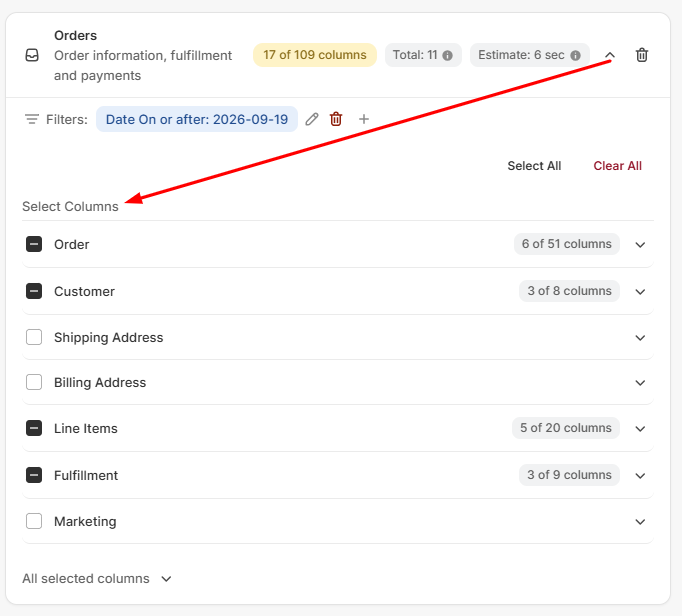
Step 4: Choose your columns and set filters
Go to Columns and Filter, then expand the Orders section. Select the data columns you want to export. For example: order number, customer name, email, line items, total price, fulfillment status, tracking number, and order date.
You can also set filters here. For example, export only unfulfilled orders, or only orders from a specific date range. Filters let you keep the sheet focused and reduce the number of rows to a manageable size.
Step 5: Export orders to Google Sheets
Click Export and Continue. FlexSync creates a new tab in your connected sheet called Orders. All orders matching your filter appear as rows. Each column you selected becomes a column in the sheet.
Columns shown in yellow are editable and can be pushed back to Shopify. Columns shown in white or gray are read-only and exist for reference only.
Step 6: Edit in Sheets and push changes back to Shopify
Make your edits in the yellow columns. For example, update a fulfillment status, add an internal note, or change a field you want to update in bulk.
When you are ready to sync your changes back, return to FlexSync and click Push order changes to Shopify. FlexSync reads the edited rows and updates the matching orders in your Shopify admin.
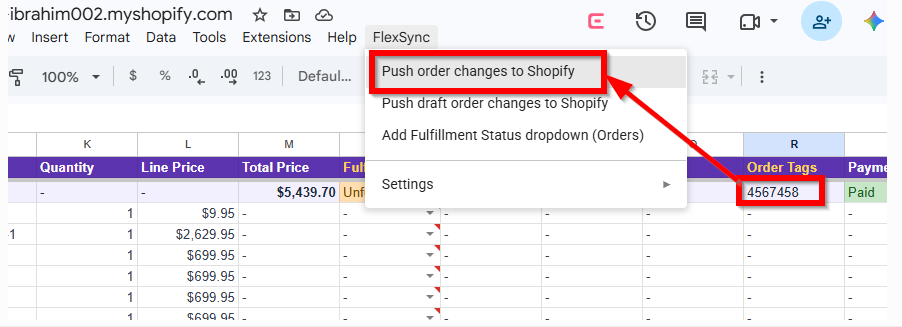
📌 Important: editing the sheet does not update Shopify automatically.
You need to click Push order changes to Shopify each time you want edits in the sheet to reflect in your store. This is intentional so you can review changes before they go live.
What Shopify Order Data You Can Sync and Edit
FlexSync exports a wide range of order data to Google Sheets. The fields available depend on your plan and the columns you select.
Read-only fields (reference data)
These fields export to Sheets for visibility and reporting but cannot be pushed back to Shopify:
- Order ID and order number
- Customer name, email, and phone
- Product name, SKU, and quantity
- Order date, created at, and updated at timestamps
- Payment status and gateway
- Shipping address and country
Editable fields (can push back to Shopify)
These fields are shown in yellow in the sheet. Changes in these columns can be pushed back to your Shopify store:
- Fulfillment status (includes a dropdown for quick selection)
- Internal order notes
- Additional supported order fields as made available in FlexSync updates
Draft Orders
FlexSync also supports Draft Orders as a separate tab. Draft orders are quotes or invoices you create in Shopify before a customer pays. You can export them, view details, and push supported changes back in the same way as regular orders.
Tips for Getting the Most from Your Order Sync
Use filters to keep your sheet manageable
Exporting all orders from a store that has been running for a year or more can produce thousands of rows. Use date range filters or fulfillment status filters to export only what your team is actively working on. You can always run a fresh export for a different date range when needed.
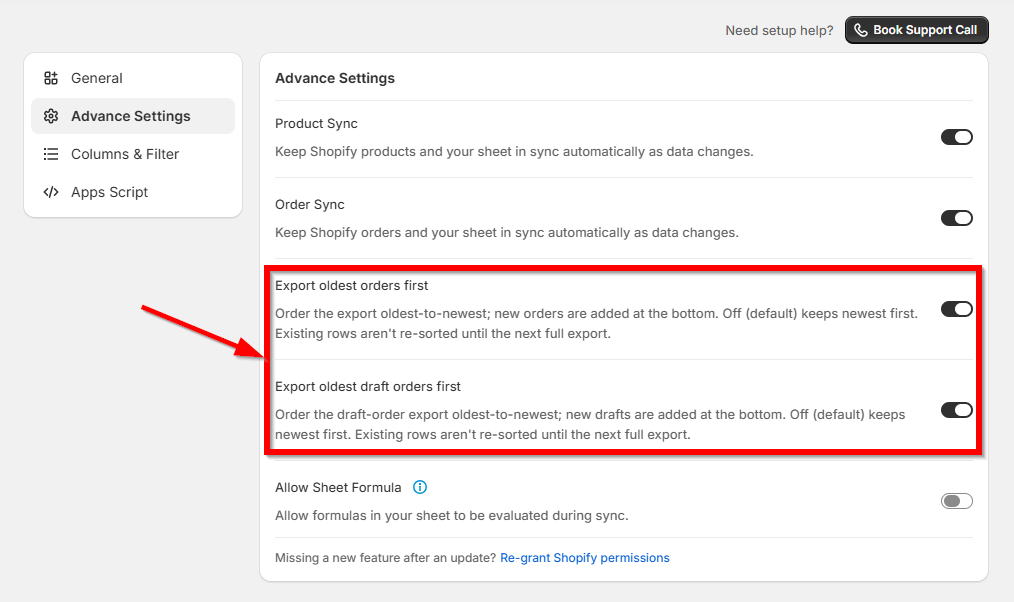
Set export order to oldest first for fulfillment workflows
By default, FlexSync shows newest orders first. For fulfillment teams who work through orders chronologically, switch the export order to oldest first in Advance Settings. New orders will then append to the bottom of the sheet as they come in.
Re-export after changing column settings
If you add or remove columns, or change your filters, you need to run Export and Continue again to apply those changes to the sheet. Existing edits in yellow columns are separate from column configuration changes and do not affect each other.
Use Google Sheets version history as a safety net
Before pushing large bulk edits back to Shopify, use File, Version History, Name Current Version in Google Sheets to save a snapshot. If anything goes wrong, you can restore the previous state and identify which rows were edited.
For a broader look at managing order data in Shopify, see the guide to Shopify order management apps and the full walkthrough on how to manage Shopify orders.
If you also want to sync product data, the guide to connecting Google Sheets to Shopify covers the full product sync setup, and exporting Shopify data to Google Sheets explains what other data types you can sync beyond orders.
Frequently Asked Questions
Can I sync historical Shopify orders to Google Sheets?
Yes. FlexSync exports your full order history based on the filters you set. You can export orders from any date range, not just new ones going forward. Zapier and Make.com only capture new order events and do not backfill historical data.
Does syncing orders affect my Shopify store?
The export to Google Sheets is read-only and does not change anything in your store. Changes only go back to Shopify when you click Push order changes to Shopify. There is no risk of accidentally overwriting data during the export step.
What happens if I change a column and the sheet already has data?
If you add or remove columns in FlexSync and then run Export and Continue again, the sheet is updated to reflect the new column selection. Back up your sheet with version history before running a new export if you have edits in yellow columns that you have not yet pushed.
Can multiple team members edit the Google Sheet at the same time?
Yes. Google Sheets supports real-time collaborative editing. Multiple team members can edit different rows simultaneously. Whoever runs the Push order changes to Shopify step sends all pending edits to Shopify at once.
Is it possible to sync orders from multiple Shopify stores?
Yes, if you connect multiple Shopify stores to FlexSync. Each store gets its own sheet or tab. This is useful for brands that operate separate storefronts for different regions or product lines.
What is the difference between Order Sync and the manual CSV export in Shopify?
The built-in Shopify CSV export is a snapshot. It is not connected to your store, does not update when new orders come in, and cannot push changes back. FlexSync Order Sync creates a live connection. The sheet updates as orders come in, and you can push edits from the sheet back to Shopify without touching the admin.
Final Thoughts
Syncing Shopify orders with Google Sheets removes one of the most common bottlenecks for growing stores: the gap between your order data and the tools your team actually uses.
Manual CSV exports work for a one-time pull. Zapier handles new order logging if you do not need history or editing. Apps Script gives you full control if you have developer time to spend. FlexSync covers the full picture, two-way sync, no code, historical orders, and live updates, with a free plan to get started.
Install FlexSync from the Shopify App Store and connect your first Google Sheet in under 10 minutes. For a deeper look at what else you can sync, see the guide to Shopify Google Sheets live sync.
